
How to Connect a Game Controller to PC
 By Theo LangUpdated
Plug a controller into your PC with a USB-C cable, or pair it over Bluetooth or 2.4G wireless. Windows sees the controller as a gamepad, and games list it in their controller settings. The steps below cover a wired connection, a wireless connection and what to check when the controller does not show up.
Connect with a USB cable
Plug one end of a USB cable into the controller and the other end into a USB port on your PC. The Xbox controller connects through USB-C for plug-and-play use on PC. The GameSir G7 SE uses a detachable USB wired connection with no extra drivers. Windows should show the controller as connected. Open a game and check its controller settings to confirm the buttons respond.
Pair a wireless connection
For a wireless connection, put the controller in pairing mode and add it through the device settings on your PC. The Xbox controller pairs with Bluetooth and Xbox Wireless. The 8Bitdo Ultimate 2C works over 2.4G and wired connections. The GameSir G7 Pro connects to a PC through 2.4G wireless or a wired connection, and it switches modes with a physical mode switch. Keep the controller charged: the G7 Pro comes with a charging station and a 1200mAh battery.
Check the controller in Windows settings
Open the Bluetooth and devices settings on your PC and look for the controller in the device list. If it appears, open a game and check that the sticks, triggers and buttons respond. The Xbox Accessories app remaps buttons and builds controller profiles for the Xbox controller, and the GameSir Nexus app adjusts stick curves and button mapping for the G7 Pro. If the controller does not appear, remove it from the device list and pair it again.
Fix a controller that does not respond
Start with the cable or the wireless link. Swap the USB-C cable for another one, or move the controller closer to the PC and pair it again. Check that the game supports controllers and that the controller is picked in the game settings. Charge the controller if its battery is low: the G7 Pro charges on its station.
What you need
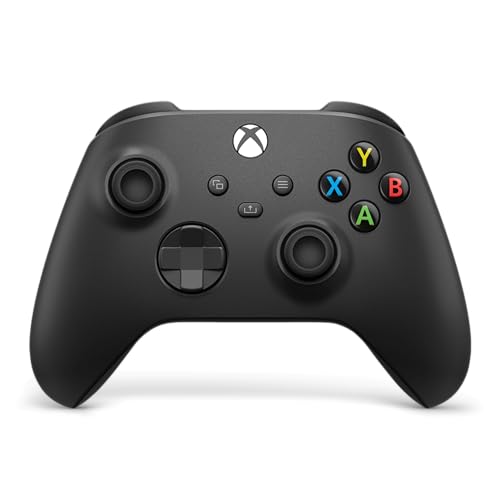
XBOX Wireless Gaming Controller
An Xbox wireless controller with USB-C plug-and-play on PC, Bluetooth and Xbox Wireless, a hybrid D-pad and a 3.5mm audio jack.
View on Amazon
GameSir G7 Pro Wired Controller for Xbox X
A tri-mode controller for PC with 2.4G wireless and wired connections, TMR sticks, Hall Effect triggers and a 1000Hz polling rate.
View on Amazon
GameSir G7 SE Wired Controller for Xbox X
A wired controller for PC with a detachable USB connection, Hall Effect joysticks and triggers, and two custom back keys.
View on Amazon
8Bitdo Ultimate 2C Wireless Controller for
A wireless controller for Windows PC and Android with a 1000Hz polling rate, Hall Effect joysticks and triggers, and remappable bumpers.
View on AmazonThese come from our ranked list Best Gamepad, which compares them spec by spec.
FAQ
Can I use an Xbox controller on a PC?
Yes. Connect it with a USB-C cable for plug-and-play use, or pair it over Bluetooth or Xbox Wireless. The Xbox Accessories app remaps buttons and builds controller profiles.
Do I need drivers to use a wired controller?
The GameSir G7 SE works through a USB wired connection with no extra drivers. Plug the detachable cable into the controller and the PC, then check the game settings.
What is the 1000Hz polling rate on these controllers?
The GameSir G7 Pro and the 8Bitdo Ultimate 2C have a 1000Hz polling rate on PC through wired and 2.4G connections. A higher polling rate means the controller reports its inputs to the PC more often.


