How to Calibrate a Monitor for Photo Editing
 By Theo LangUpdated
To calibrate a monitor for photo editing, use a hardware colorimeter and its software, or your operating system's display calibration tool, to set the screen's brightness, color temperature and color space. The process measures what the screen shows and builds a profile that your editing software reads. A calibrated screen shows photos closer to how they look on other screens and in print.
Warm up the screen and set the light
Turn the monitor on and let it run before you start, so the backlight settles at its normal brightness. Set the room light to the level you edit in, and keep lamps and windows from shining on the screen. A bright patch of light on the panel changes how dark areas look, and a dark room changes how bright areas look. Calibrate in the same light you edit in, so the profile matches your working conditions.
Choose the color space for your work
Open the monitor menu or the calibration software and pick the color space your work goes to. sRGB fits photos shared on the web, while Adobe RGB or DCI-P3 fits work that goes to print or to a wide-gamut display. If the monitor offers a preset for the space you picked, select it before you measure, so the calibration starts from the right range of colors. A mismatch here makes photos look flat or oversaturated on other screens.
Measure the screen with a colorimeter
Hang the colorimeter on the center of the screen and start the calibration software. The software shows a series of color patches, the device reads each one, and the software compares what the screen shows with the values it expects. Follow the prompts to adjust brightness and contrast when the software asks, then let it finish and save the profile. The operating system loads the profile each time the monitor starts, so the correction applies to every app.
Check the result with a photo you know
Open a photo with skin tones, a sky and deep shadows, and look at it in your editing software. Skin should look natural, the sky should show a smooth gradation, and shadow areas should still show detail. If the picture looks wrong, check that the new profile is active in your operating system settings and run the calibration again. Keep the reference photo on hand so you can compare the screen after each calibration.
Recalibrate when colors drift
Screens change as they age, and a profile made months ago no longer matches the panel. Recalibrate when photos start to look different from prints, when the screen looks warmer or cooler than it did, or when you move the monitor to a room with different light. Make a new profile each time rather than editing the old one, and keep the colorimeter in its case between sessions so it stays clean.
What you need

ASUS ProArt Display PA278QV2 27-inch Professional Monitor
A 27 inch IPS monitor with 2560 x 1440 resolution, 95% DCI-P3 and 100% sRGB coverage, Calman Verified with Delta E under 2, and a 120 Hz refresh rate.
View on Amazon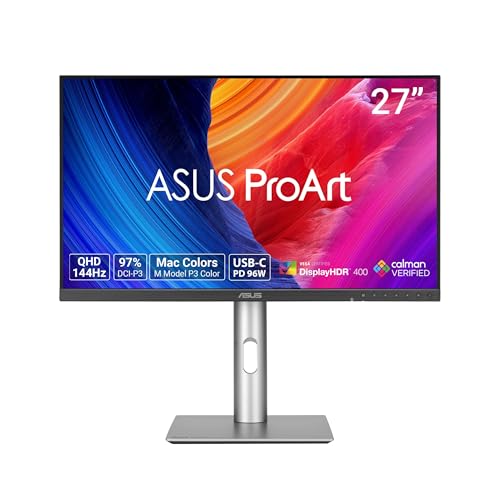
ASUS ProArt PA278CGRV 27-inch USB-C Professional Monitor for Mac
A 27 inch IPS monitor with 2560 x 1440 resolution, 97% DCI-P3 and 100% sRGB coverage, Calman Verified with Delta E under 2, and USB-C with 96 W power delivery.
View on Amazon
BenQ MA270UP 27-inch 4K Monitor for MacBook Pro/Air
A 27 inch 4K monitor with 3840 x 2160 resolution, a P3 wide color gamut, dual USB-C ports with 90 W power delivery, and a height and tilt adjustable stand.
View on Amazon
MSI PRO MP273U
A 27 inch IPS monitor with 3840 x 2160 resolution, a 60 Hz refresh rate, 95% Adobe RGB and 99% DCI-P3 coverage, and Delta E of 2 or less.
View on AmazonThese come from our ranked list Best Monitor for Photo Editing, which compares them spec by spec.
FAQ
Can I calibrate a monitor without a colorimeter?
Yes. Windows and macOS include a display calibration tool that walks you through brightness, contrast and color settings by eye. The result is less precise than a hardware device, but it is a useful start on a monitor that arrives factory calibrated, such as the ASUS ProArt Display PA278QV2, which is Calman Verified with Delta E under 2.
Why do my photos look different on another screen?
Every screen ships with its own brightness, color temperature and profile, so the same file looks different from one screen to the next. Calibration brings your screen closer to a shared reference, so photos match more closely across screens and prints.
Does calibration change my photo files?
No. Calibration only changes how the monitor shows colors. Your photo files stay the same, and the profile tells your software and operating system how to show them on this screen.