
DisplayPort Monitor Cable Types Explained
 By Theo LangUpdated
DisplayPort monitor cables come in DisplayPort to DisplayPort, USB-C to DisplayPort, and DisplayPort to HDMI forms. A DisplayPort to DisplayPort cable connects a DisplayPort output to a DisplayPort input, such as the DisplayPort socket on the Dell and Samsung monitors here. Check the plugs at both ends before you buy, and check that a laptop USB-C port carries video if you use a USB-C cable.
Start with the DisplayPort socket
Look at the sockets on the monitor and on the computer before you choose a cable. The Dell monitor has a DisplayPort 1.4 socket, HDMI and USB-C. The Samsung monitor has DisplayPort and HDMI. A cable must match the socket at each end, so a DisplayPort plug does not fit an HDMI socket. Check the manual for the computer and the monitor if a socket is hard to identify.
Use a DisplayPort to DisplayPort cable
A DisplayPort to DisplayPort cable has a DisplayPort plug at each end, and it connects a DisplayPort output to a DisplayPort input. Use it when the computer and the monitor both have a DisplayPort socket, as the Dell and Samsung monitors here do. Check that each plug sits firmly in its socket before you switch the monitor on.
Use a USB-C to DisplayPort cable
A USB-C to DisplayPort cable has a USB-C plug at one end and a DisplayPort plug at the other, and it connects a USB-C port to a DisplayPort input. A USB-C port does not always carry video, so check the laptop manual or spec sheet for DisplayPort Alt Mode, Thunderbolt or USB4 on that port. If the port only carries data, a monitor attached through it stays blank even though USB devices work.
Use a DisplayPort to HDMI cable
A DisplayPort to HDMI cable has a DisplayPort plug at one end and an HDMI plug at the other, and it connects a DisplayPort output to an HDMI input. Use it when the monitor has an HDMI socket, as the YOTETION and Dragolftie monitors here do. Check the cable direction before you buy, since the DisplayPort end goes to the computer and the HDMI end goes to the monitor.
What you need
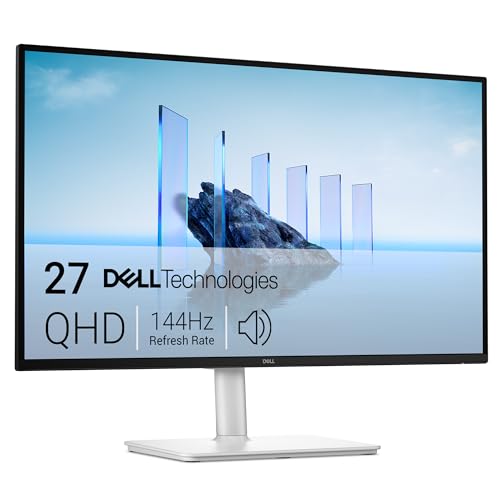
Dell 27 Plus USB-C Monitor S2725DC
A 27-inch QHD monitor with DisplayPort 1.4, HDMI and USB-C, a 2560x1440 resolution and a 144Hz refresh rate.
View on Amazon
Samsung 32-inch Flat Computer Monitor LS32B304NWNXGO
A 32-inch monitor with DisplayPort and HDMI, a 75Hz refresh rate and AMD FreeSync.
View on Amazon
YOTETION 19-inch Small Thin Monitor for laptops
A 19-inch monitor with HDMI and VGA ports, a 1440 x 900 resolution and a 75Hz refresh rate.
View on Amazon
24-inch Touchscreen Monitor VA 3000
A 24-inch touchscreen monitor with HDMI, VGA and Type-B ports, a 1920x1080 resolution and a 75Hz refresh rate.
View on AmazonThese come from our ranked list Best Monitor Type, which compares them spec by spec.
FAQ
Do I need a DisplayPort cable for a 144Hz monitor?
Not from the port name alone. The Dell monitor lists a 144Hz refresh rate and DisplayPort 1.4, while the Samsung, YOTETION and Dragolftie monitors list a 75Hz refresh rate. Check the refresh rate in the monitor's own figures before you buy.
Can I use a USB-C cable for DisplayPort?
Only if the USB-C port carries video. Check the laptop manual for DisplayPort Alt Mode, Thunderbolt or USB4 on that port. The Dell monitor has a USB-C port, and a USB-C port that only carries data leaves the monitor blank.
What if my monitor has an HDMI socket only?
Use the ports it has. The YOTETION monitor has HDMI and VGA ports, and the Dragolftie monitor has HDMI, VGA and Type-B ports. A DisplayPort to HDMI cable fits a DisplayPort output and an HDMI input.


