What to Look Out for When Buying a Laptop
 By Theo LangUpdated
Start with what you do on the laptop, then match the screen size, memory, storage and ports to that work. A 13-inch laptop is easier to carry, while a 15.6-inch or 17.3-inch screen shows more at once. Check the operating system, the keyboard and the warranty before you buy, since those are hard to change later.
Match the screen size to your work
A smaller screen keeps the laptop light and easy to carry, while a larger screen shows more of a document or a spreadsheet at once. The laptops here range from a 13-inch display to a 17.3-inch display, so compare the sizes side by side. Think about where you use the laptop most: on a desk, on your lap or on the move. A larger screen also means a larger body, so check that it fits your bag and your desk.
Check memory and storage
Memory holds the apps and files you have open, and storage holds the files, apps and system you keep. The laptops here list 8GB or 16GB of memory and 256GB or 512GB of storage. More memory helps when you keep many apps open at once, and more storage helps when you keep large files on the laptop. Check how much storage your files use now, and leave room to add more later.
Check the ports and wireless
Ports decide what you can plug in without an adapter. The MacBook Air here has two Thunderbolt 4 ports, a MagSafe charging port and a headphone jack, so check which cables and chargers fit those ports. A USB-C port does not always carry video, so check that the port on your laptop supports video output before you plan on an external monitor. The Dell here lists Wi-Fi 6 and the MacBook Air lists Wi-Fi 7, so check that your router and network support the same version.
Look at the keyboard and camera
The keyboard is the part you touch most, so check the layout and the key feel before you buy. The HP here has a full-size keyboard with a 10-key number pad, and the Dell here has a backlit keyboard for typing in dim light. For video calls, the MacBook Air has a 12MP Center Stage camera and the HP has a 720p Wide Vision camera, so compare the camera figures when you choose.
Check the operating system and warranty
The operating system decides which apps run on the laptop and how the menus look. Two laptops here run macOS and two run Windows 11, so pick the system your apps and files already use. Check the warranty too: the MacBook Air and the MacBook Neo list a one-year Apple limited warranty, and the Dell lists one year of basic onsite service. Keep the warranty terms where you can find them after you buy.
What you need

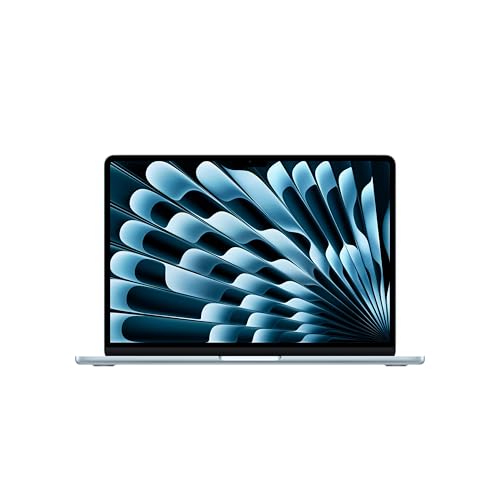
Apple MacBook Air 13-inch Laptop
A 13.6-inch laptop with the M5 chip, 16GB of unified memory, 512GB of storage, a 12MP Center Stage camera and Touch ID, with Wi-Fi 7.
View on Amazon
Apple MacBook Neo 13-inch Laptop
A 13-inch laptop with the A18 Pro chip, 8GB of unified memory, 256GB of storage and a 1080p FaceTime HD camera, in a recycled aluminum enclosure.
View on Amazon
Dell 15.6 Laptop
A 15.6-inch laptop with an Intel Core Ultra 5 225U processor, 16GB of DDR5 memory, 512GB of storage, a backlit keyboard and Wi-Fi 6.
View on Amazon
HP 17-inch Laptop
A 17.3-inch laptop with an AMD Ryzen 5 processor, 16GB of memory, 512GB of storage, a full-size keyboard with a numeric keypad and Windows 11.
View on AmazonThese come from our ranked list Best Laptop, which compares them spec by spec.
FAQ
Is 8GB of memory enough for everyday work?
It depends on the apps you run and how many you keep open at once. The MacBook Neo here lists 8GB of unified memory, while the other three laptops here list 16GB. Check the memory figure the maker of your software publishes, and pick the laptop that matches it.
What screen size should I choose?
Match the screen to where you use the laptop and what you look at most. A 13-inch screen is easier to carry, while a 17.3-inch screen shows more of a page or a spreadsheet. The laptops here range from 13 inches to 17.3 inches, so compare the sizes before you buy.
How do I check the ports before I buy?
List the devices you plug in now, such as a monitor, a mouse, a drive and a charger. Then check that the laptop has the ports those devices use, and check that a USB-C port supports video output if you plan to use it with a monitor. A hub or adapter can add ports, but it is one more thing to carry.