What to Look for in a Tablet
 By Theo LangUpdated
Start with how you plan to use the tablet, then match the screen, operating system, storage and accessories to that use. A tablet for reading and video needs a clear screen and enough storage for downloads, while one for notes and drawing needs pen support and a keyboard option. Check the weight too, since you hold a tablet in your hands more than you hold a laptop.
Decide what the tablet is for
List the main jobs the tablet will do, such as reading, watching video, taking notes, drawing or running work apps. A tablet used mainly at a desk can be larger and heavier, while one carried in a bag all day should be light and easy to hold with one hand. Write down the apps you need before you compare models, then check that each app runs on the operating system of the tablet you are considering.
Compare screen size and display
A larger screen shows more of a page, a document or a video frame, and it gives more room for drawing and split-screen work. A smaller screen is easier to hold for long reading sessions and fits in smaller bags. Look at the display type listed for the model, and check whether it supports a pen or a keyboard, since those change how you use the screen.
Check the operating system and apps
The operating system decides which apps are available and how the tablet connects to your phone, laptop and cloud storage. Some tablets run the same apps as a phone, while others run desktop-style apps and connect to a keyboard for laptop-style work. Check that the apps you rely on are available on that system, and check how files move between the tablet and your other devices.
Match storage and memory to your files
Storage holds your apps, photos, videos and downloaded files, so a tablet with more storage holds more of them before you need to delete anything or move files elsewhere. Memory affects how many apps stay open at once. Check the storage and memory figures listed for the model against the size of the files you keep, and choose a larger storage figure if your files already take up most of the space.
Check weight, ports and accessories
Hold the tablet the way you will use it and note its weight, since a heavier tablet tires your hands during long reading or drawing sessions. Check which ports it has and whether its USB-C port supports video output or charging, since a port name alone does not prove either. Also check which pens, keyboards and cases fit that exact model, since accessories made for one model often do not fit another.
What you need

Apple iPad 11-inch
An 11-inch tablet with the A16 chip, a Liquid Retina display, 128GB of storage, Wi-Fi 6 and Touch ID built into the top button.
View on Amazon
Microsoft Surface Pro 2-in-1 Laptop/Tablet
A 12-inch 2-in-1 tablet with a touchscreen, the Snapdragon X Plus processor, 16GB of memory, 512GB of storage and a built-in kickstand.
View on Amazon
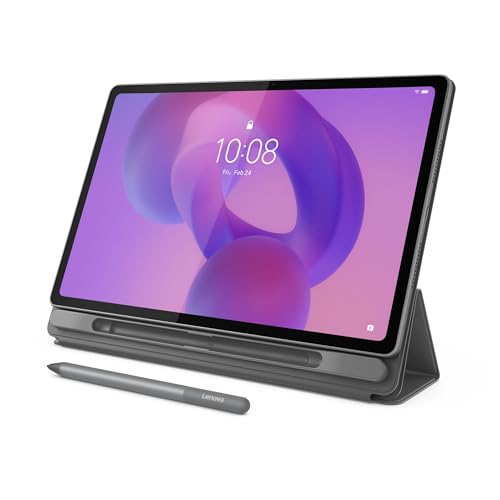
Lenovo Idea Tab Pro Gen 2 Tablet Pen & Folio Case
A 13-inch tablet with a 3.5K IPS touchscreen, a 144Hz display, the Snapdragon 8s Gen 4 processor, 8GB of memory and 128GB of storage.
View on Amazon
Microsoft Surface Pro 11 Copilot PC Bundle
A 13-inch tablet with a 2.8K touchscreen, the Snapdragon X Plus processor, 16GB of memory, 256GB of storage and a keyboard and Slim Pen in the box.
View on AmazonThese come from our ranked list Best Tablet PC, which compares them spec by spec.
FAQ
Can a tablet replace a laptop?
It depends on your work. A tablet with a keyboard and the apps you need can cover reading, notes, video and light document work. For software that runs only on a laptop or desktop, keep the laptop and use the tablet beside it.
Does a tablet need a keyboard?
Not for reading, video or browsing, where the touch screen is enough. A keyboard helps for long writing sessions and for work that needs many shortcuts. Check that the keyboard you want fits your exact tablet model before you buy it.
Do tablets work with a pen?
Some tablets support a pen for notes, drawing and marking up documents, while others do not. Check the pen support listed for the exact model and whether the pen is included or sold separately. A pen made for one model may not work on another.