How to Set Up Dual Channel RAM
 By Theo LangUpdated
Dual channel RAM runs when two matched sticks sit in the two slots your motherboard marks for dual channel. Buy the sticks as one matched kit, such as a 2x8GB or 2x16GB kit, and place them in the marked slots. Then turn on the XMP or EXPO profile in the BIOS to run the kit at its rated speed.
Buy one matched kit
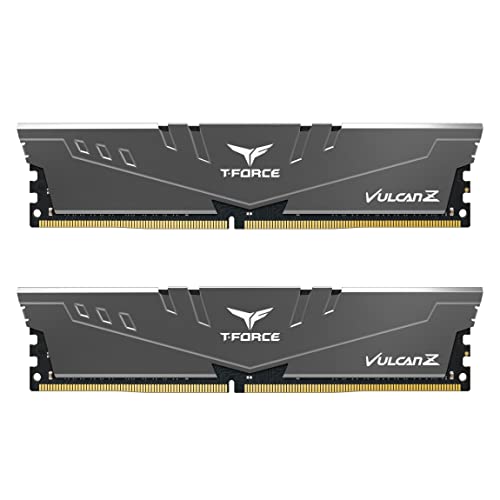
Dual channel starts with the kit. The kits here come as matched pairs: 16GB as 2x8GB, 32GB as 2x16GB, and 64GB as 2x32GB. A matched kit holds two sticks built to run together, so buy both sticks in one kit instead of adding a second stick later. Do not mix memory kits. Mixing memory kits will result in stability issues or system failure. Check the memory QVL or configurator for your motherboard before you buy, and match the DDR generation to your board.
Put the sticks in the marked slots
Shut the PC down and unplug it before you open the case, and follow the maker's manual for your motherboard. Find the two slots the manual marks for a two-stick kit and put one stick in each. The marked slots sit in different channels, so one stick in each marked slot gives you dual channel. Do not place both sticks in the two slots next to each other unless the manual marks those two.
Turn on XMP or EXPO in the BIOS
A new kit boots at the JEDEC default speed, not at its rated speed. Open the BIOS and turn on the XMP or EXPO profile for the kit: XMP 3.0 and EXPO on the DDR5 kits here, and XMP on the DDR4 kit. The DDR5 kits here rate 6000 MHz, and the DDR4 kit rates 3200 MHz. Maximum speed requires overclocking or BIOS adjustments, and the speed you reach depends on your motherboard and CPU.
Check that the kit runs at its rated speed
After you turn on the profile, look at the memory speed the BIOS reports. The DDR5 kits here rate 6000 MHz, and the DDR4 kit rates 3200 MHz. If the BIOS still shows the JEDEC default speed, the profile did not apply: open the BIOS again, turn the profile on, save, and restart. If the speed still does not match the rated speed, follow the manual for your motherboard and check the memory QVL for your board.
What you need

Patriot Viper Venom DDR5 RAM
A 16GB DDR5 kit as 2x8GB at 6000MT/s CL36, with XMP 3.0 and EXPO overclocking and on-die ECC.
View on Amazon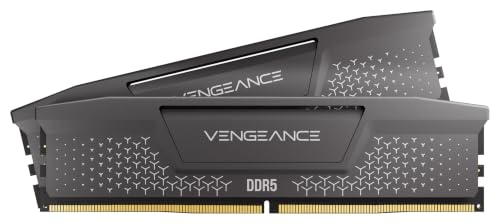
CORSAIR Vengeance RS DDR5
A 32GB DDR5 kit as 2x16GB up to 6000MHz, with AMD EXPO and Intel XMP 3.0 and onboard voltage regulation.
View on Amazon
Corsair Vengeance RGB RS DDR5
A 64GB DDR5 kit as 2x32GB up to 6000MHz, with AMD EXPO and Intel XMP 3.0 and dynamic RGB lighting.
View on Amazon
G.SKILL RipjawsV DDR4 RAM (XMP)
A 32GB DDR4 kit as 2x16GB up to 3200MT/s CL16-18-18-38, with an Intel XMP overclock profile and a JEDEC default profile.
View on AmazonThese come from our ranked list Best RAM for PC, which compares them spec by spec.
FAQ
Do both RAM sticks have to match?
Yes. Buy one matched kit, such as 2x8GB or 2x16GB, so both sticks run together. Do not mix memory kits: mixing kits will result in stability issues or system failure.
Which slots do I use for dual channel?
Use the two slots your motherboard manual marks for a two-stick kit. Put one stick in each marked slot, and do not guess: the manual shows which two slots form the dual channel pair.
Why is my RAM slower than its rated speed?
A kit boots at the JEDEC default speed until you turn on its XMP or EXPO profile in the BIOS. Maximum speed requires overclocking or BIOS adjustments, and the speed you reach depends on your motherboard and CPU.