
How to Set Up a Portable Monitor Stand
 By Theo LangUpdated
To set up a portable monitor stand, open the monitor's built-in kickstand or fold its smart cover into a stand, then set it on a flat surface and adjust the angle. The ARZOPA has a built-in kickstand, while the KYY and the ForHelp use a smart cover that doubles as a stand. Then connect the monitor to your laptop with USB-C or HDMI.
Open the kickstand or cover stand
Start with the stand the monitor brings with it. The ARZOPA has a built-in kickstand that adjusts the tilt angle to fit how you sit. The KYY and the ForHelp come with a smart cover that doubles as a stand, so fold the cover back and rest the monitor in it. Open the stand before you connect any cable, so the screen is steady while you plug it in.
Set the screen on a flat surface
Place the monitor and its stand on a flat, steady surface next to your laptop, with room for the cable to reach the laptop port. Keep the base of the stand fully on the surface so the screen does not tip. Leave space behind the monitor for the cable, and set the screen next to the laptop so you can look across both screens.
Adjust the tilt angle
Once the monitor stands on its own, set the tilt so the screen faces you. The ARZOPA kickstand adjusts the tilt angle to fit different uses. The KYY and the ForHelp covers have two grooves in the base, so move the monitor between the grooves to change the viewing angle. If the screen glares or looks washed out from your seat, change the angle until the picture looks right from where you sit.
Connect the monitor with one cable
Connect the monitor to your laptop with one USB-C or Mini HDMI cable. The models shown here have USB-C ports and a Mini HDMI port. A USB-C port on a laptop does not always carry video, so check that your laptop's USB-C port supports video output before you buy. For a game console, follow the connection steps in the monitor manual.
Choose the display mode
After the picture appears, pick how the second screen behaves. The ForHelp and the Anyuse list copy mode, extension mode and second screen mode, so you can mirror the laptop or extend the desktop across both screens. The ARZOPA and the KYY also switch between landscape and portrait modes, so turn the screen upright when you want a tall view for a long document.
What you need

ARZOPA 16.1'' Portable Gaming Monitor 106% sRGB Z1FC
A 16.1-inch 1080p IPS monitor with a built-in kickstand that adjusts the tilt angle, plus two USB-C ports and Mini HDMI.
View on Amazon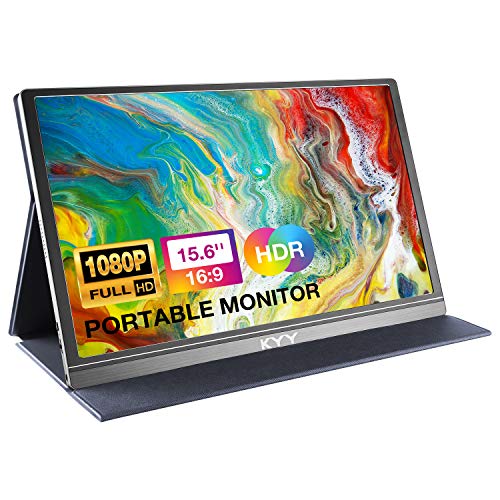
KYY Portable Monitor 15.6-inch Computer Monitor Screen Extender w/Cover
A 15.6-inch 1080p IPS monitor weighing 1.7 lb, with a smart cover that doubles as a stand and two grooves for the viewing angle.
View on Amazon
ForHelp 15.6-inch Portable Monitor
A 15.6-inch 1080p IPS monitor weighing 1.52 lb, with a smart cover that doubles as a stand and two grooves for the viewing angle.
View on Amazon
Anyuse 15.6-inch USB-C
A 15.6-inch 1080p IPS monitor weighing 1.37 lb, with two Type-C ports and Mini HDMI for a one-cable connection to a laptop.
View on AmazonThese come from our ranked list Best Portable Monitor, which compares them spec by spec.
FAQ
Do portable monitors come with a stand?
Some do. The ARZOPA has a built-in kickstand, and the KYY and the ForHelp come with a smart cover that doubles as a stand. Check what comes with the monitor you pick before you buy a separate stand.
Can I use a portable monitor in portrait mode?
Yes, if the monitor supports it. The ARZOPA and the KYY switch between landscape and portrait modes, so you can turn the screen upright for a tall view. Check the monitor manual for the steps to change the screen orientation.
What cable connects a portable monitor to a laptop?
A USB-C cable or a Mini HDMI cable. The models shown here have USB-C ports and a Mini HDMI port, and they connect with one cable. Check that your laptop's USB-C port supports video output before you connect it.


