
How to Position Two Monitors Ergonomically
 By Theo LangUpdated
Place your main monitor straight in front of you, with the top of the screen near eye level, and put the second monitor beside it at the same height. Angle the second screen toward you so you turn your head a short way to see it, and keep both screens the same distance from your eyes.
Put the main monitor in front of you
Sit in your chair as you work, then place the monitor you use most directly in front of you, so you face it without turning your head. Set the screen so the top edge sits near eye level and you can read text without leaning forward. If the stand moves up and down, raise or lower the screen until your gaze rests near the top of the display.
Place the second monitor beside it
Put the second screen next to the main one, at the same height and the same distance from your eyes, then angle it toward you so you turn your head a short way to see the whole screen. If you use both screens about the same amount, center the join between them in front of you instead of putting one screen off to the side.
Line up the height of both screens
Adjust the stands so the tops of both screens sit at the same height, which keeps your gaze level when you move from one screen to the other. Tilt each screen back a little so it faces you squarely, and keep both screens the same distance from your eyes so you do not lean in when you switch screens.
Match the layout in display settings
Open display settings on the computer and check that the on-screen layout matches how the monitors sit on your desk, with the main screen and the second screen in the right places. Drag the screen icons until they match, and set the screen you use most as the main display. Then move the mouse across the join and check that it crosses in the direction you expect.
Keep light off both screens
Place the monitors so windows and lamps do not shine straight onto either screen, since glare makes text hard to read and pulls your eyes to the bright patch. If you see a reflection, move the desk, close a blind or turn the screens a little until the reflection clears. Keep the keyboard and mouse in front of the main screen so your hands stay where you look.
What you need

ASUS TUF Gaming VG249QML5A 24-inch Gaming Monitor
A 23.8 inch monitor with 1920x1080 resolution, a 240 Hz refresh rate, an IPS panel and a height-adjustable stand.
View on Amazon
Samsung 24-inch (S30GD) Essential Monitor
A 24 inch monitor with an IPS panel, a 100 Hz refresh rate and a tilt-only stand for a second screen at the desk.
View on AmazonSamsung 27-inch (S30GD) Essential Monitor
A 27 inch monitor with an IPS panel, a 100 Hz refresh rate and a tilt-only stand for the main screen in a pair.
View on Amazon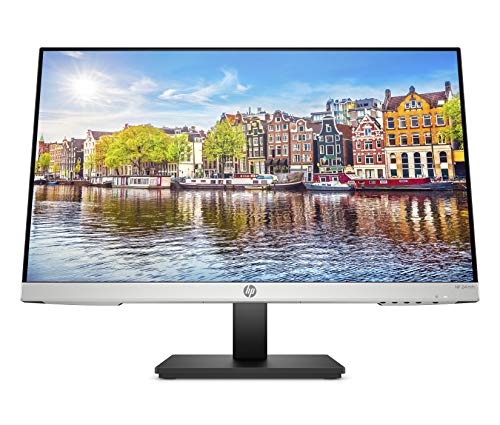
HP 24mh Monitor
A 23.8 inch monitor with 1920x1080 resolution, an IPS panel, HDMI and DisplayPort, built-in speakers and height and tilt adjustment.
View on AmazonThese come from our ranked list Best Monitor Ergonomics, which compares them spec by spec.
FAQ
Should both monitors be the same size?
They do not have to match. Screens of different sizes still work side by side, but matching the height of the two screens keeps your gaze level when you move between them.
How far away should the monitors sit?
Sit so you can read both screens without leaning forward or squinting. If you lean in to read, move the screen closer or make the words larger in display settings.
Which monitor should be the main display?
Make the screen you look at most the main display. That is where your taskbar and new windows appear, so put the screen with your main work in front of you.



