How to Mount a Monitor Without Holes
 By Theo LangUpdated
To mount a monitor without holes, use a desk clamp mount that grips the edge of your desk or a freestanding stand that sits on the desk. Neither needs holes in the wall. Check that the mount fits your monitor and its weight before you buy.
Use a desk clamp mount
A desk clamp mount grips the edge of your desk and holds the monitor on an arm, so the wall stays untouched and no holes are drilled. Check that the clamp fits the thickness of your desk edge and that the arm holds the weight of your monitor. Tighten the clamp by hand and check that the mount does not move before you hang the monitor on it. Keep the cables clear of the clamp so they do not pull on the ports.
Try a freestanding monitor stand
A freestanding stand sits on the desk under the monitor, so it needs no clamp and no holes in the wall or the desk. Set the stand on a flat part of the desk and place the monitor on it, then check that the monitor sits level and does not rock. A stand lifts the screen and leaves room under it for a keyboard or notebook. Check that the stand holds the weight of your monitor before you use it.
Check VESA mounting on your monitor
A mount that holds the monitor by its VESA points needs a monitor with VESA mounting. The Acer monitor is VESA mountable, and the Sceptre monitor is VESA wall mountable. Check the manual for the VESA points on your monitor and for the screws the mount needs. A freestanding stand sits under the monitor, so it works with any of the four monitors here.
Route the cables and set the tilt
All four monitors here have HDMI, and the Dell 27-inch monitor and the Sceptre monitor also have DisplayPort. Connect the cable to the monitor before you hang it on the mount, so you are not reaching behind a mounted screen. The Dell monitors tilt, so set the tilt after the monitor is on the mount. Leave slack in the cables so the mount can move without pulling on the ports.
What you need

Dell 24 Monitor SE2426H
A 23.8-inch 1920x1080 IPS monitor at 144Hz that weighs 7.43 lb, with HDMI and tilt for a clamp mount setup.
View on Amazon
Dell 27 Gaming Monitor SE2726HG
A 27-inch 1920x1080 IPS monitor at 240Hz that weighs 8.2 lb, with HDMI and DisplayPort for cable routing.
View on Amazon
Acer 23.8-inch Office Monitor KB242Y G0bi
A 23.8-inch 1920x1080 IPS monitor at 120Hz that is VESA mountable and weighs 7.72 lb, with HDMI and VGA.
View on Amazon
Sceptre 24-inch Gaming Monitor 1ms E248W-FW100T
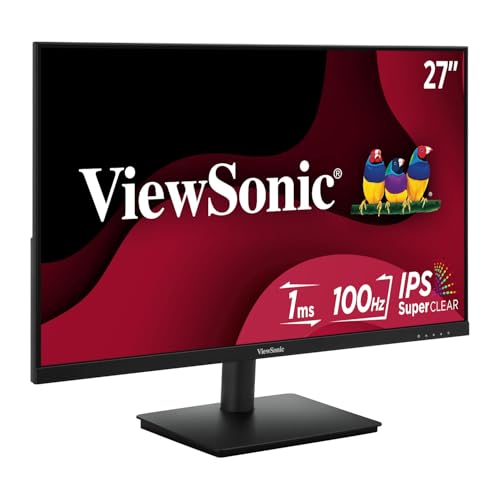
A 24-inch 1920x1080 monitor at 100Hz that is VESA wall mountable and weighs 5.8 lb, with HDMI, DisplayPort and built-in speakers.
View on AmazonThese come from our ranked list Best PC with Monitor, which compares them spec by spec.
FAQ
Can I mount a monitor without drilling the wall?
Yes. A desk clamp mount grips the desk edge, and a freestanding stand sits on the desk, so neither needs holes in the wall. Check that the mount fits your monitor and the desk edge first.
Do I need VESA mounting for a clamp mount?
A clamp mount that holds the monitor by its VESA points needs a VESA mountable monitor. The Acer monitor is VESA mountable, and the Sceptre monitor is VESA wall mountable, so check the manual for the VESA points on your monitor.
How do I know the mount holds my monitor?
Check the mount's weight limit against the weight of your monitor. The monitors here weigh 5.8 lb, 7.43 lb, 7.72 lb and 8.2 lb, so check the limit before you buy.