How to Add Extra RAM to a PC
 By Theo LangUpdated
Shut the PC down, unplug it, and open the case following the maker's manual. Match the new RAM to the motherboard: DDR5 boards take DDR5 modules and DDR4 boards take DDR4 modules, in a matched kit. Seat each module in its slot until the clips close, then check that the PC reports the new capacity.
Check what your motherboard takes
Find whether the board takes DDR4 or DDR5 memory and how many slots it has, using the board manual or the PC maker's manual. DDR4 and DDR5 modules use different slots and do not fit each other, so buy the generation the board lists. Note the capacity of each module and the number of modules in the kit: the kits here run from 16GB in two 8GB modules to 64GB in two 32GB modules. A matched kit is built to run together as a set, so keep the modules of one kit together and do not mix kits.
Shut down and open the case
Shut the PC down and unplug it from the wall before you touch anything inside. Follow the maker's manual for opening the case and for where the memory slots sit. Touch a metal part of the case first to discharge static, and keep the new modules in their packaging until you are ready to fit them.
Seat the modules in their slots
Open the clips at each end of a slot, line the notch on the module up with the key in the slot, and press down evenly on both ends until the clips close around the module. Fit the modules of one kit in the slots the board manual names, and leave no module half seated. If a module does not fit, stop and check the generation and the notch position instead of forcing it.
Check the new capacity and speed
Plug the PC back in, switch it on, and check the memory figure the PC reports. If the PC reports less capacity than the kit states, shut it down, unplug it and re-seat the modules. The rated speed on some kits needs overclocking or BIOS adjustments, so check the board manual for the profile the kit supports, such as Intel XMP or AMD EXPO.
What you need

Patriot Viper Venom DDR5 RAM
A DDR5 kit of 16GB in two 8GB modules at 6000MT/s CL36, with 1.35V, Intel XMP and AMD EXPO support and On-Die ECC.
View on Amazon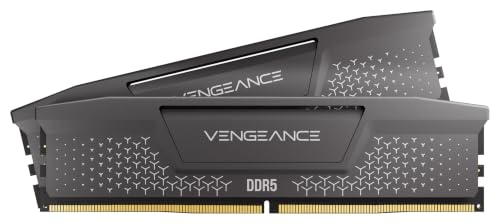
CORSAIR Vengeance RS DDR5
A DDR5 kit of 32GB in two 16GB modules at up to 6000MHz CL38, with AMD EXPO and Intel XMP 3.0 profiles and onboard voltage regulation.
View on Amazon
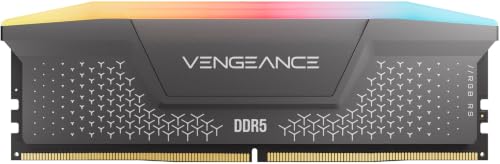
Corsair Vengeance RGB RS DDR5
A DDR5 kit of 64GB in two 32GB modules at up to 6000MHz CL40, with AMD EXPO and Intel XMP 3.0 profiles, onboard voltage regulation and dynamic RGB lighting.
View on Amazon
G.SKILL RipjawsV DDR4 RAM (XMP)
A DDR4 kit of 32GB in two 16GB modules at up to 3200MT/s CL16-18-18-38, with a JEDEC default profile and an Intel XMP overclock profile.
View on AmazonThese come from our ranked list Best RAM for PC, which compares them spec by spec.
FAQ
Can I mix DDR4 and DDR5 memory in one PC?
No. DDR4 and DDR5 modules use different slots, so fit only the generation your board lists. Mixing memory kits can also cause stability issues or system failure, so keep the modules of one matched kit together.
Do I need to change BIOS settings after fitting RAM?
The G.SKILL kit boots at a JEDEC default speed at default BIOS settings with compatible hardware. To reach the rated speed, check the board manual for the overclock profile the kit supports, such as Intel XMP or AMD EXPO, since maximum speed needs overclocking or BIOS adjustments.
What if the PC does not show the new RAM?
Shut the PC down, unplug it and re-seat each module until the clips close. Check that the modules sit in the slots the board manual names and that the kit matches the generation the board lists.