How to Find Out What Type of RAM You Have
 By Theo LangUpdated
To find out what type of RAM you have, check the memory details in your operating system first, then confirm them in the BIOS or UEFI setup, and check the module itself for the exact kit name, capacity, generation and rated speed. The details to note are the generation, such as DDR4 or DDR5, the capacity, the speed and whether the module is a desktop or laptop part.
Check the memory in Windows
Open Task Manager and select the Performance tab, then Memory. The panel shows the installed capacity, the speed the memory runs at, the form factor and how many slots are in use. Note each figure exactly as shown. The generation name, such as DDR4 or DDR5, may not appear there, so treat this screen as the first check rather than the full answer and confirm the generation in the steps below.
Confirm the details in BIOS or UEFI
Restart the computer and enter the BIOS or UEFI setup using the key shown at startup or named in the manual. The memory section lists each installed module with its capacity, generation and speed, and shows whether a memory profile is enabled. Write down the generation and speed for each slot. Exit without saving if you only came to read the figures, so no setting changes by accident.
Check the module itself
The module itself shows the exact kit name, capacity, generation and rated speed. Shut the computer down and unplug it first, then follow the maker's manual for opening the case. Do not open a device that is under warranty; contact the maker instead. Note the full model name from the module without removing it where you can, so you can match it later.
Match generation, speed and form factor
Compare the figures you wrote down with any kit you consider. The generation must match, since DDR4 and DDR5 modules fit different slots and do not swap between generations. The form factor must match too: desktop modules and laptop modules are different shapes. Rated speed on a kit can require a memory profile in BIOS settings, and the maker notes that maximum speed depends on the motherboard and CPU, so check the motherboard manual for supported speeds.
What you need

Patriot Viper Venom DDR5 RAM
A DDR5 desktop kit of 16GB as two 8GB modules, rated at 6000MT/s with CL36 timings and XMP and EXPO profile support.
View on Amazon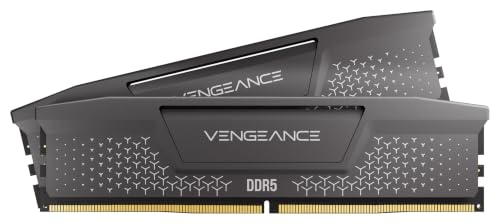
CORSAIR Vengeance RS DDR5
A DDR5 desktop kit of 32GB as two 16GB modules, rated up to 6000MHz with CL38 timings and XMP and EXPO profiles.
View on Amazon
Corsair Vengeance RGB RS DDR5
A DDR5 desktop kit of 64GB as two 32GB modules with RGB lighting, rated up to 6000MHz with CL40 timings.
View on Amazon
G.SKILL RipjawsV DDR4 RAM (XMP)
A DDR4 desktop kit of 32GB as two 16GB U-DIMM modules, rated up to 3200MT/s with an Intel XMP profile.
View on AmazonThese come from our ranked list Best RAM for PC, which compares them spec by spec.
FAQ
How do I know if my RAM is DDR4 or DDR5?
Check the memory section in BIOS or UEFI setup, or read the generation printed on the module. DDR4 and DDR5 are different generations with different slots, so the generation name on your current modules decides which kits fit your motherboard.
Does the speed in Task Manager match the kit rating?
Not always. Kits can run at a default speed until a memory profile is enabled in BIOS settings, and makers note that maximum speed depends on the motherboard and CPU. Compare the running speed with the rated speed on the module.
Can I mix RAM kits with different speeds?
Makers advise against mixing kits. G.SKILL states that memory kits are sold as matched sets designed to run together, and mixing kits can cause stability issues. Match the generation, capacity and rated speed of the kit already installed.