
How to Connect a Monitor to a Laptop With USB-C
 By Theo LangUpdated
Connect a monitor to a laptop with USB-C by running one USB-C cable from a laptop port that supports video output to the USB-C port on the monitor. The monitors here all take USB-C, and the Dell 34 and Dell 27 pass up to 65W of power back to the laptop through the same cable. Check that your laptop's USB-C port supports video output, since not every USB-C port does.
Check your laptop's USB-C port first
A USB-C port on a laptop does not always carry video, so check the laptop manual for DisplayPort Alt Mode, Thunderbolt or USB4 on that port. If the port only carries data, the monitor stays blank even though the cable fits. The monitors here all take USB-C, so once the laptop port checks out, one cable carries the picture.
Plug in one cable
Plug the USB-C cable into the laptop port and the USB-C port on the monitor, then switch the monitor input to USB-C. The Dell 34 runs a single USB-C cable with up to 65W power delivery, and the Dell 27 does the same, with a pop-out USB-C port that passes up to 15W. The ASUS passes up to 90W through USB-C, so compare that figure with the charger that came with your laptop.
Set the display up in settings
Once the picture shows, open the display settings on the laptop and pick extend or mirror for the new screen. Set the resolution to match the monitor: the Dell 27 and the Sceptre run at 2560 by 1440, the Dell 34 runs at WQHD, and the ASUS runs at 3840 by 2160. If the picture stays blank, check the cable and the input on the monitor before you change anything else.
Use HDMI or DisplayPort instead
If the laptop USB-C port does not carry video, use the HDMI or DisplayPort input on the monitor instead. The Dell 27, the ASUS and the Sceptre each have HDMI and DisplayPort, so use the port your laptop and monitor share. A USB-C to HDMI or DisplayPort cable or adapter runs the picture from a laptop port that carries video, so check the laptop manual first.
What you need

Dell 34 Monitor S3425DW
A 34-inch WQHD monitor with a 120Hz refresh rate, a VA panel and USB-C with up to 65W power delivery.
View on Amazon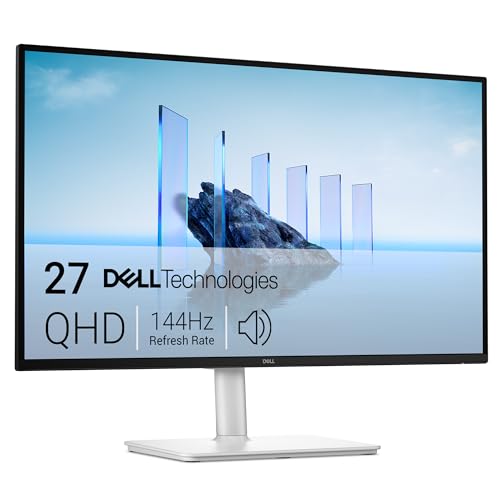
Dell 27 Plus USB-C Monitor S2725DC
A 27-inch QHD monitor with a 144Hz refresh rate, USB-C, HDMI and DisplayPort 1.4, and height, tilt, pivot and swivel adjustment.
View on Amazon
ASUS ROG PG32UCDM3 32-inch 4K Tandem Gaming Monitor
A 32-inch 4K monitor with a 240Hz refresh rate, a QD-OLED panel, USB-C with 90W power delivery and DisplayPort 2.1.
View on Amazon
Sceptre 32-inch 2K Gaming Monitor up to USB Type-C E325B-QW200D
A 32-inch QHD monitor with a 210Hz refresh rate, a VA panel, USB-C, HDMI and DisplayPort, and built-in speakers.
View on AmazonThese come from our ranked list Best USB C Monitor, which compares them spec by spec.
FAQ
Can any USB-C port run a monitor?
No. The laptop port must support video output, so check the laptop manual for DisplayPort Alt Mode, Thunderbolt or USB4. A port that only carries data leaves the monitor blank.
Will one USB-C cable charge my laptop?
It can, if the monitor passes power through USB-C. The Dell 34 and Dell 27 pass up to 65W, and the ASUS passes up to 90W, so compare that figure with the charger that came with your laptop.
What if the monitor stays blank?
Check that the cable is fully plugged in and the monitor input is set to USB-C. Then check that the laptop port supports video output, and try the HDMI or DisplayPort input instead.


