
How to Clean a Laptop Privacy Screen
 By Theo LangUpdated
To clean a laptop privacy screen, power the laptop off, wipe the surface with a clean dry microfiber cloth, then dampen the cloth with a little distilled water or a cleaner made for screens and wipe in straight lines. Never spray liquid straight onto the screen, and never use paper towels, household glass cleaner or anything abrasive.
Shut the laptop down first
Shut the laptop down and unplug the charger before you clean. A dark screen shows smudges and dust far better than a lit one, so you can see what still needs wiping. It also keeps you from tapping keys or clicking things while you work. Let the screen cool for a few minutes if the laptop has been running, then set it on a flat surface where the lid stays steady.
Dust the surface with a dry cloth
Use a clean, dry microfiber cloth and wipe the privacy screen with light, straight strokes from one side to the other. This lifts loose dust and fingerprints before any moisture touches the surface, which helps keep grit from scratching the filter. Shake the cloth out or fold it to a clean side when it picks up dust. If the cloth has picked up grit, swap it for a fresh one rather than dragging the grit across the screen.
Wipe with a lightly dampened cloth
Dampen a clean microfiber cloth with a little distilled water or a cleaner made for screens, then wring it out so it feels barely damp. Wipe the screen in straight, overlapping lines with light pressure, and let the damp cloth do the work instead of pressing hard. Never spray liquid straight onto the screen, since liquid can run down into the hinge or behind the filter. Work one small area at a time until the whole surface is covered.
Dry the screen before you use it
Go over the screen once more with a dry microfiber cloth to take off any remaining moisture and stop streaks from drying in place. Check the screen from a few angles while it is still off, and repeat the damp wipe on any spots you missed. Wait until the surface is fully dry before you close the lid or switch the laptop back on, so moisture is not trapped against the keyboard or the screen.
What to avoid when cleaning
Skip paper towels, tissues and rough cloths, which can leave scratches on the filter surface. Skip household glass cleaner and any cleaner with ammonia or strong solvents, since these can damage the coating that makes the screen private. Never scrub at a stubborn mark with a fingernail or a sharp object. If a mark will not lift, hold the damp cloth over it for a short while to soften it, then wipe again gently.
What you need

Apple MacBook Neo 13-inch Laptop
A 13-inch laptop with a Liquid Retina display, 8 GB of unified memory and 256 GB of storage, with a 1080p FaceTime HD camera.
View on Amazon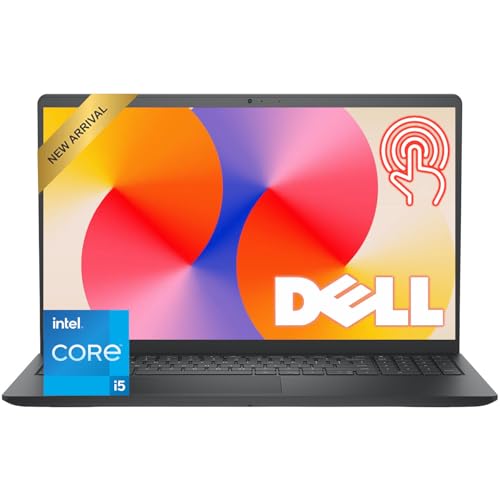
Dell 15.6-inch Touchscreen Laptop
A 15.6-inch Full HD touchscreen laptop with a 120 Hz IPS display, 8 GB of DDR4 memory and 512 GB of storage.
View on Amazon
Laptop 16-inch
A 16-inch laptop with a Full HD IPS display, 8 GB of memory and 256 GB of storage, powered by an AMD A9-9400 processor.
View on Amazon
AKCHART 15.6'' Laptop
A 15.6-inch laptop with an FHD IPS display, 12 GB of memory and 256 GB of storage, a 180-degree hinge and a 7000mAh battery.
View on AmazonThese come from our ranked list Best Laptop Screen, which compares them spec by spec.
FAQ
Can I use household glass cleaner on a privacy screen?
No. Glass cleaner and cleaners with ammonia or strong solvents can damage the coating that narrows the viewing angle. Use a little distilled water or a cleaner made for screens on a microfiber cloth instead.
Should I clean the screen while the laptop is on?
Clean it with the laptop off. A dark screen shows smudges clearly, and you avoid tapping keys or clicking while you wipe. Let the screen dry fully before you switch the laptop back on.
How do I remove a mark that will not wipe off?
Hold a lightly dampened microfiber cloth over the mark for a short while to soften it, then wipe gently in straight lines. Repeat the damp wipe rather than scrubbing, and never use a fingernail or a sharp object on the surface.


