How to Clean a Laptop Keyboard Without Compressed Air
 By Theo LangUpdated
You can clean a laptop keyboard without compressed air by shutting the laptop down and unplugging it first. Turn it upside down and tap it gently to drop out crumbs, brush between the keys with a soft brush, then wipe the keys with a cloth that is only slightly damp. Keep liquid out of the keyboard and let the keys dry before you switch the laptop back on.
Shut down and unplug first
Shut the laptop down completely and unplug the charger and any accessories before you touch the keyboard. Cleaning while the laptop is on can press keys and change settings, and a live keyboard can short if liquid gets in. Follow the maker's manual for your model, and do not open the laptop or remove parts to clean inside it.
Turn it over and tap out debris
Hold the laptop upside down over a clean surface and tap the base gently so crumbs and dust fall out of the keyboard. Tilt it from side to side and tap again so debris caught at the edges of the keys works loose. Do this over a bin or a sheet of paper so you can see what came out and throw it away.
Brush between the keys
Use a soft, dry brush to sweep between the keys and push dust toward the edges where you can pick it up. Work in short strokes from one side of the keyboard to the other, and brush the gaps around each key. Do not use a sharp object to scrape between keys, and do not pry a key off, since a key that is forced off can break.
Wipe the keys with a damp cloth
Dampen a lint-free cloth with a little water and wring it out until it is only slightly damp, then wipe across the keys and the surface around them. Never spray water or cleaner straight onto the keyboard, and keep the cloth away from ports and openings. Wipe again with a dry lint-free cloth and let the keyboard dry fully before you turn the laptop on.
Deal with stuck keys and spills
If a key still sticks after brushing and wiping, or if liquid has been spilled on the keyboard, shut the laptop down and unplug it, then contact the maker for help. Do not open the laptop, remove the battery, or try to dry the inside yourself. A maker repair is the right step when keys stay stuck or the keyboard stops responding.
What you need

Apple MacBook Air 13-inch Laptop 24GB
The 13.6-inch MacBook Air with the M5 chip, 24GB unified memory and 1TB SSD in Midnight, the laptop this guide cleans.
View on Amazon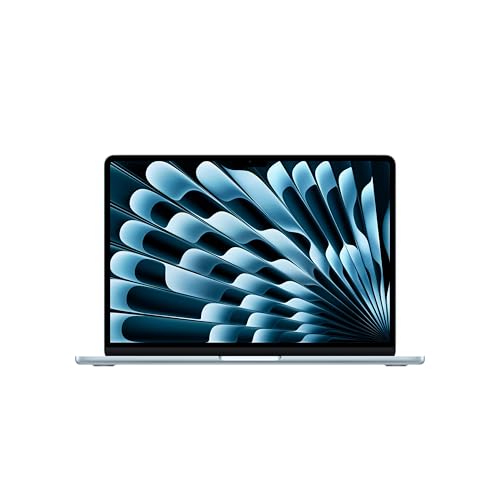
Apple MacBook Air 13-inch Laptop 24GB
The 13.6-inch MacBook Air with the M5 chip, 24GB unified memory and 1TB SSD in Sky Blue, the laptop this guide cleans.
View on Amazon
Apple MacBook Air 13-inch Laptop 16GB 512GB
The 13.6-inch MacBook Air with the M5 chip, 16GB unified memory and 512GB SSD in Starlight, the laptop this guide cleans.
View on AmazonApple MacBook Air 13-inch Laptop 16GB 1TB
The 13.6-inch MacBook Air with the M5 chip, 16GB unified memory and 1TB SSD in Midnight, the laptop this guide cleans.
View on AmazonThese come from our ranked list Best MacBook Air, which compares them spec by spec.
FAQ
Can I use water to clean laptop keys?
Yes, in small amounts. Use a lint-free cloth that is only slightly damp with water, wrung out so it does not drip, and wipe the keys. Never pour water on the keyboard or spray liquid onto it, and let the keys dry fully before you switch the laptop on.
Can I take the keys off to clean under them?
No. Do not pry the keys off, since they can break and may not fit back on. Brush between the keys and wipe them instead, and if a key stays stuck or stops working, shut the laptop down, unplug it, and contact the maker.
How often should I clean a laptop keyboard?
Clean it when you see dust or crumbs between the keys, when keys feel gritty or stick, or when the keys look marked. A quick brush and wipe when those signs show up keeps debris from building up under the keys.