
How to Calibrate a Laptop Screen for Photo Editing
 By Theo LangUpdated
Calibrate a laptop screen for photo editing by measuring it with a hardware colorimeter and letting the software build a color profile for the display. Set the screen to its native resolution, work in a room without direct light falling on the screen, and save the profile as the display default. The profile tells photo software how your screen shows color, so edits match what you print or share.
Set up the room first
Work in a room with steady, indirect light and no lamp or window shining straight onto the screen. Direct light washes out dark tones and shifts how colors read, so close blinds or move the laptop until the screen shows no bright reflections. Keep the room light the same each time you edit, since a profile built under one light looks wrong under another.
Set the native resolution
Open your display settings and set the screen to its native resolution, the highest resolution the laptop lists for the built-in display. A lower resolution softens fine detail and changes how sharpness reads in a photo. On Windows, find this under display settings; on macOS, find it under display settings in System Settings. Leave the resolution there while you calibrate and edit.
Measure the screen with a colorimeter
Plug a hardware colorimeter into a USB port and hang it over the center of the screen, following the instructions that came with the device. The calibration software shows a series of color patches, the colorimeter measures each one, and the software builds a color profile from the readings. Save the profile and set it as the display default. A measured profile is more consistent than adjusting sliders by eye.
Check the profile against a photo
Open a photo you know well, one with skin tones, neutral grays, and saturated color, and look at it on the calibrated screen. Skin should look natural, grays should look neutral without a color cast, and saturated areas should hold detail instead of blocking up. If the image looks wrong, run the calibration again and check that the new profile is the one the system is using.
Recalibrate when colors drift
Screens drift over time, so watch for the signs that a new calibration is due. Recalibrate when photos start to look different from prints or from the same files on another screen, when the room lighting changes, or after you change display settings or drivers. Keep the colorimeter and its software ready so a fresh profile takes only a few minutes to build.
What you need

Apple MacBook Air 13-inch Laptop
A 13.6-inch Liquid Retina display that supports 1 billion colors, with 16GB of unified memory and a 512GB SSD for photo libraries.
View on Amazon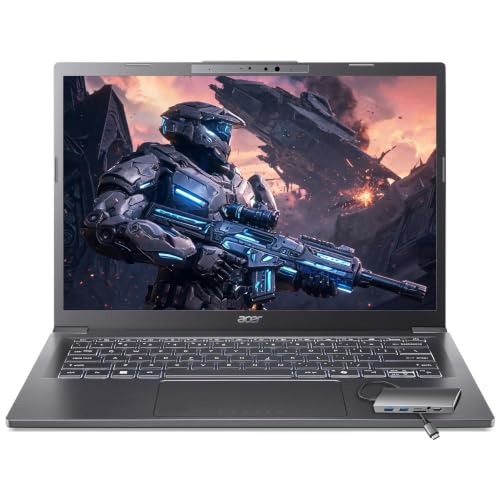
Acer Aspire Laptop
A 14-inch touchscreen laptop with Intel Arc 140V graphics and stylus support for direct photo retouching, plus 32GB of RAM and a 2TB SSD.
View on Amazon
Acer Nitro V 16S Gaming Laptop
A 16-inch display with 100% sRGB color coverage for accurate colors, a 1920 x 1200 resolution, and a 180Hz refresh rate.
View on Amazon
Dell Inspiron Laptop
A 15.6-inch FHD touchscreen with wide viewing angles, 16GB of RAM, and a 512GB SSD for photo files.
View on AmazonThese come from our ranked list Best Laptop Computer for Photo Editing, which compares them spec by spec.
FAQ
Can I calibrate a laptop screen without a colorimeter?
You can adjust brightness and contrast by eye in your display settings, but the result depends on your judgment and the room light. A hardware colorimeter measures the screen and builds a profile from readings, so it gives a more consistent result.
Why do my photos look different on another screen?
Each screen shows color through its own panel and profile, so the same file can look warmer, cooler, brighter, or duller from one screen to another. Calibration brings your screen closer to a shared reference, but an uncalibrated screen still shows the file its own way.
Does calibration change the photo files?
No. Calibration changes the color profile your screen uses, not the photo files. The files keep the same color values, and the profile only changes how the screen shows them.

