
How to Attach a Portable Monitor
 By Theo LangUpdated
Attach a portable monitor to your laptop or desktop with USB-C, or with HDMI plus a power cable. A USB-C cable can carry video and power when the port supports video output, while an HDMI cable carries video and needs a second cable for power. Once connected, set the display mode in your system settings and place the portable monitor beside your main screen.
Check which ports your laptop has
Look at the ports on your laptop and on the portable monitor before you buy or connect a cable. Portable monitors connect through a USB-C cable or a Mini HDMI cable, and many take both. A USB-C port on a laptop does not always carry video, so check your laptop manual or spec sheet for video output on that port. If the port only carries data, the monitor stays blank. Note which port supplies power, since some setups need a second cable from a USB port or wall adapter.
Connect with a USB-C cable
Plug one end of the USB-C cable into the portable monitor and the other end into a USB-C port on your laptop that supports video output. When the port also supplies enough power, the monitor turns on and shows your desktop with that single cable. If the screen stays dark, try the other USB-C port on the monitor or connect a second cable to a USB port or wall adapter for power. Keep the cable short and fully seated at each end, since a loose plug breaks the connection.
Connect with an HDMI cable
Plug a Mini HDMI cable into the portable monitor and a full-size HDMI cable into your laptop or desktop, using an adapter when the monitor or laptop has a different HDMI size. HDMI carries video only, so connect a USB-C cable from the monitor to a USB port or wall adapter for power. Wait for the picture to appear on the monitor screen. If the screen stays dark, check that the laptop output is set to the HDMI port and that the cable is fully seated at each end.
Set the display mode and arrange the screens
Open display settings on your laptop once the monitor shows a picture. Choose extend to use the portable monitor as extra space beside your main screen, or duplicate to show the same picture on each screen. Drag the screen icons in settings so their order matches how the monitors sit on your desk, so the mouse moves across in the right direction. Set the resolution to the 1080p option the monitor lists, and adjust brightness from the monitor menu until text is easy to read.
Set up the stand and position the monitor
Set the portable monitor on a flat surface and position it using the stand method listed for that model. Tilt the screen until it faces you straight on and sits at about the same height as your main screen. Leave space behind the monitor for the cables and keep the cable ends clear of the stand hinge. When you move the setup, disconnect the cables and carry the monitor flat so the screen stays clear of other gear.
What you need

ARZOPA 16.1'' Portable Gaming Monitor 106% sRGB Z1FC
A 16.1-inch 1080p portable monitor with a 144 Hz IPS panel, two USB-C ports, a Mini HDMI port and a built-in kickstand.
View on Amazon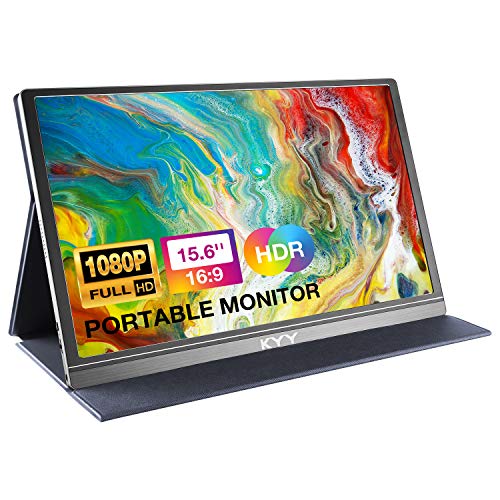
KYY Portable Monitor 15.6-inch Computer Monitor Screen Extender w/Cover
A 15.6-inch 1080p IPS portable monitor with two USB-C ports, a Mini HDMI port, built-in speakers and a smart cover that doubles as a stand.
View on Amazon
ForHelp 15.6-inch Portable Monitor
A 15.6-inch 1080p IPS portable monitor in an aluminum alloy body, with two USB-C ports, a Mini HDMI port and a smart cover that doubles as a stand.
View on Amazon
Anyuse 15.6-inch USB-C
A 15.6-inch 1080p IPS portable monitor with a 60 Hz panel, two USB-C ports, a Mini HDMI port and built-in speakers.
View on AmazonThese come from our ranked list Best Portable Monitor, which compares them spec by spec.
FAQ
Can I connect a portable monitor with one cable?
Yes, when your laptop's USB-C port supports video output and the monitor takes power over the same cable. Check the port notes in your laptop manual, since a data-only USB-C port shows a blank screen.
Why does my portable monitor show no picture?
Check that the cable is fully seated at each end and that your laptop's port supports video output. Then open display settings and confirm the monitor is detected and set to extend or duplicate the screen.
Can a portable monitor work as a second screen for a desktop?
Yes. Connect it to the desktop's HDMI or USB-C video output and give it power from a USB port or wall adapter. Then set the display mode in your system settings.


