How to Add New RAM to a PC
 By Theo LangUpdated
To add new RAM to a PC, shut the PC down, unplug it, open the case, and fit matching memory modules into the empty RAM slots on the motherboard. Push each module down until the clips at both ends close, then close the case and start the PC.
Check which memory your PC takes
Open your motherboard manual and look for the memory generation it takes, DDR4 or DDR5, and the slot order it lists for adding modules. A DDR4 module does not fit a DDR5 slot, and a DDR5 module does not fit a DDR4 slot, so the generation in the manual decides what you buy. The manual also lists the slot order to follow when some slots stay empty.
Shut down and unplug the PC
Shut the PC down through the operating system, then unplug the power cable from the wall and from the PC. Wait until the fans stop and any lights on the case go out before you touch anything inside. Keep the PC on a flat surface, and touch a bare metal part of the case before handling a module so static on your hands has somewhere to go.
Open the case and find the slots
Remove the side panel as your PC manual shows and find the long RAM slots next to the processor, with a clip at each end of every slot. If a module is already fitted, note which slots hold it, since the manual lists the order to use when you add more. Clear any cables that hang over the slots so you have room to press a module straight down.
Fit the new modules
Hold a module by its edges and line up the notch on its lower edge with the tab in the slot, since the notch stops the module going in the wrong way round. Press down evenly on both ends until the clips at each end close around the module. Do not mix memory kits, since kits are sold as matched sets that are made to run together, and mixing kits can cause stability problems.
Close the case and check the result
Put the side panel back on, plug the power cable back in, and switch the PC on. Open your system settings or the BIOS screen and check that the total memory shown matches the capacity you fitted. If the total is lower than expected, shut down, unplug the PC, and press each module down again until the clips close.
What you need

Patriot Viper Venom DDR5 RAM
A DDR5 kit of 16 GB in a 2X8GB configuration, rated at 6000 MHz, with support for Intel XMP and AMD EXPO.
View on Amazon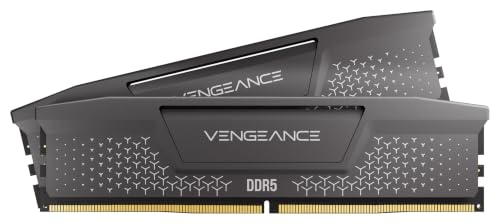
CORSAIR Vengeance RS DDR5
A DDR5 kit of 32 GB in a 2 x 16GB configuration, rated at 6000 MHz, with AMD EXPO and Intel XMP 3.0 support.
View on Amazon
Corsair Vengeance RGB RS DDR5
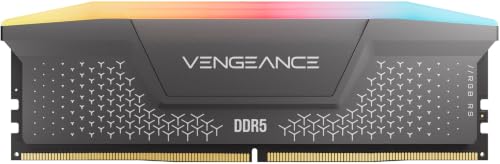
A DDR5 kit of 64 GB in a 2 x 32GB configuration, rated at 6000 MHz, with RGB lighting and AMD EXPO and Intel XMP 3.0 support.
View on Amazon
G.SKILL RipjawsV DDR4 RAM (XMP)
A DDR4 kit of 32 GB in a 2x16GB configuration, rated at 3200 MHz, with an Intel XMP memory overclock profile.
View on AmazonThese come from our ranked list Best RAM for PC, which compares them spec by spec.
FAQ
Can I mix DDR4 and DDR5 memory in one PC?
No. A motherboard takes one memory generation, DDR4 or DDR5, and a module of the other generation does not fit the slot. Check the generation in your motherboard manual before you buy.
Do I have to fill every RAM slot?
No. You can add modules to the empty slots and leave the rest empty. Your motherboard manual lists the slot order to use when some slots stay empty.
Why does the PC not start after adding RAM?
A module may not be seated, the clips may still be open, or the generation may be wrong for the board. Shut down, unplug the PC, press each module down until the clips close, and check the generation and slot order in the manual.