
How Do Portable Monitors Connect?
 By Theo LangUpdated
A portable monitor connects to a laptop, phone or game console through a USB-C cable or a Mini HDMI cable. One USB-C cable can carry video and power when the source port supports video output, while Mini HDMI carries video and needs a separate power cable. After you connect the cable, the monitor shows the same screen as your laptop or acts as a second screen.
Check which ports your laptop has
Look at the sides of your laptop for a USB-C port and an HDMI port. A USB-C port does not always carry video, so check your laptop manual or spec sheet for DisplayPort Alt Mode, Thunderbolt or USB4 on that port. If your laptop has an HDMI port, you can use a Mini HDMI cable with an adapter or a cable that fits both ends. Knowing which ports carry video before you buy a cable saves a second trip.
Connect with one USB-C cable
Plug one end of the USB-C cable into the full-featured USB-C port on the monitor and the other end into the USB-C port on your laptop that supports video output. The monitor should light up and show your laptop screen or a blank second screen. If the monitor stays dark, try the other USB-C port on the monitor or a different USB-C port on your laptop. Some laptops need the monitor's own power cable as well when one cable does not supply enough power.
Connect with Mini HDMI
Plug a Mini HDMI cable into the Mini HDMI port on the monitor and the HDMI port on your laptop or console. Connect the monitor's USB-C power cable to a wall charger or a USB port, since Mini HDMI carries video only. Turn the monitor on and use its menu or input button to pick the Mini HDMI input if the screen stays blank. Then check the picture and set the display mode in your laptop settings.
Set the display mode
Open the display settings on your laptop and choose whether the portable monitor mirrors your laptop screen or extends it as a second screen. Mirroring shows the same picture on both screens, which suits sharing a presentation. Extending gives you extra space for a second app or document. You can also change the resolution, set which screen is the main one and switch the monitor between landscape and portrait if it supports both.
What you need

ARZOPA 16.1'' Portable Gaming Monitor 106% sRGB Z1FC
A 16.1-inch portable monitor with 1080P resolution, a 144 Hz refresh rate and an IPS panel, with two USB-C ports, a Mini HDMI port and a built-in kickstand.
View on Amazon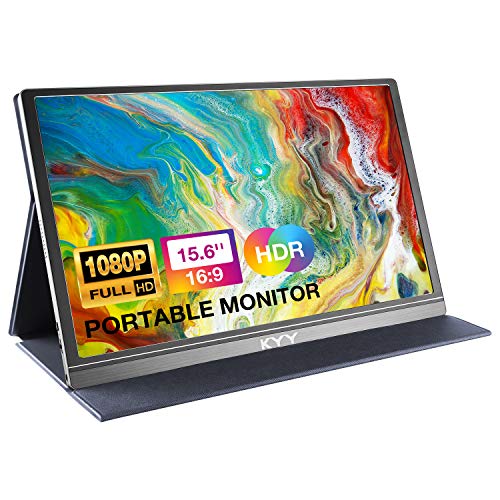
KYY Portable Monitor 15.6-inch Computer Monitor Screen Extender w/Cover
A 15.6-inch 1920 x 1080 IPS portable monitor at 1.7 lb, with two USB-C ports, a Mini HDMI port, built-in speakers and a smart cover that doubles as a stand.
View on Amazon
ForHelp 15.6-inch Portable Monitor
A 15.6-inch 1920 x 1080 IPS portable monitor at 1.52 lb, with two USB-C ports, a Mini HDMI port, built-in speakers and a smart cover that doubles as a stand.
View on Amazon
Anyuse 15.6-inch USB-C
A 15.6-inch 1920 x 1080 IPS portable monitor with a 60 Hz refresh rate, two USB-C ports, a Mini HDMI port, built-in speakers and a 1.37 lb body.
View on AmazonThese come from our ranked list Best Portable Monitor, which compares them spec by spec.
FAQ
Can I connect a portable monitor with one cable?
Yes, when your laptop has a USB-C port that supports video output. One USB-C cable can carry video and power to the monitor. If your USB-C port only carries data, use a Mini HDMI cable for video and a USB-C cable for power.
Why does my portable monitor stay blank after I plug it in?
The cable may be in a USB-C port that does not carry video, so try another port or switch to Mini HDMI. The monitor may also need its own power cable. Use the monitor menu or input button to check that the right input is selected.
Can I use a portable monitor with a phone or game console?
Yes, if the device has a USB-C port with video output or an HDMI port. Plug the monitor into that port with the matching cable, and power the monitor through USB-C. Check your device manual for the video output the port supports.


