
Do You Need to Charge a Portable Monitor?
 By Theo LangUpdated
No. You do not charge a portable monitor before use. It draws power through a cable while you use it, through the USB-C cable that carries the picture from your laptop. If you connect with HDMI instead, add a USB-C cable for power, since HDMI does not carry power.
Charge through the USB-C cable
Connect the monitor to your laptop with a full-featured USB-C cable, and check that the laptop port you use supports video output. That one cable carries both the picture and the power, so the monitor lights up when the laptop sends a signal. If the picture stays blank, move the cable to a different USB-C port on the laptop and check the monitor input setting, since a port that only carries data will not send a picture.
Use HDMI with a separate power cable
HDMI carries the picture but not power, so a monitor connected by HDMI still needs a USB-C cable for power. Plug the HDMI cable into the monitor and the laptop, then plug a USB-C cable into the monitor and into the laptop or a wall charger. The monitor draws power from that USB-C connection while the picture comes through HDMI. Check the monitor input setting if the screen stays blank after both cables are connected.
Check what your laptop port supports
A USB-C port on a laptop does not always carry video. Look in your laptop manual or spec sheet for DisplayPort Alt Mode, Thunderbolt or USB4 on that port before you buy a cable. If the port only carries data, the monitor stays blank even though the cable fits. When the USB-C port carries data only, use the HDMI port on the laptop with a separate USB-C cable for power.
Watch for a dim or blank screen
A screen that goes dim or blank while the laptop runs on its own battery can mean the monitor is not getting enough power from that port. Move the USB-C cable to a different port on the laptop, or connect the monitor to a wall charger through USB-C while the picture still comes from the laptop. If the screen stays blank, check the cable, the input setting and the laptop display settings.
What you need

ARZOPA 16.1'' Portable Gaming Monitor 106% sRGB Z1FC
A 16.1 inch 1080P portable monitor with a 144 Hz IPS screen, two USB-C connections and a Mini HDMI port, with a built-in kickstand.
View on Amazon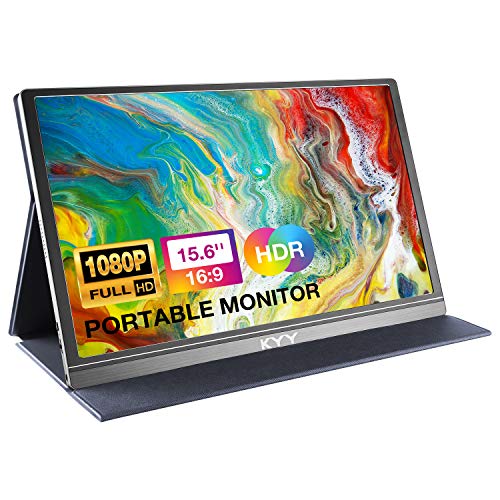
KYY Portable Monitor 15.6-inch Computer Monitor Screen Extender w/Cover
A 15.6 inch 1080P IPS portable monitor with two Type-C ports, a Mini HDMI port, two built-in speakers and a smart cover that doubles as a stand.
View on Amazon
ForHelp 15.6-inch Portable Monitor
A 15.6 inch 1080P IPS portable monitor with two Type-C ports, a Mini HDMI port, two built-in speakers and a magnetic smart cover.
View on Amazon
Anyuse 15.6-inch USB-C
A 15.6 inch 1080P 60 Hz IPS portable monitor with two Type-C ports, a Mini HDMI port and two built-in speakers.
View on AmazonThese come from our ranked list Best Portable Monitor, which compares them spec by spec.
FAQ
Do portable monitors have a battery inside?
Connect the monitor with a full-featured USB-C cable and it draws power while you use it. The models in this guide are powered through that cable, so there is no charging step before you start.
Can I use a portable monitor with HDMI only?
No. HDMI carries the picture but not power, so add a USB-C cable for power alongside the HDMI cable. Plug the USB-C cable into the monitor and into the laptop or a wall charger.
Why does my portable monitor stay blank?
Check the cable first, then the monitor input setting and the laptop display settings. A USB-C port that only carries data will not send a picture, so move the cable to a port that supports video output, or use HDMI with a separate USB-C cable for power.


