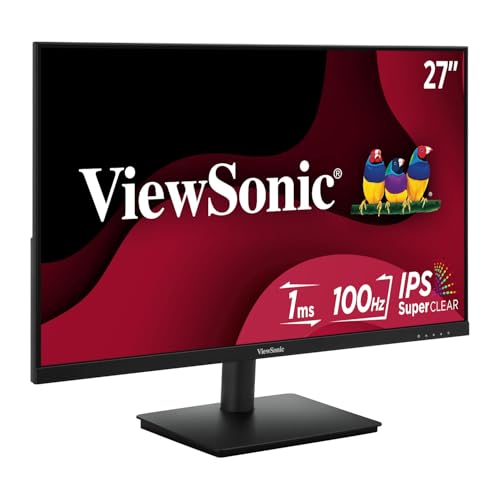
Computer Monitor Resolution Chart
 By Theo LangUpdated
A monitor resolution chart gives the pixel count of each resolution. 1080p is 1920x1080, 1440p is the next step above 1080p, and 2160p is 4K. Read the chart by matching each resolution to its pixel count, then check the size and refresh rate of the monitor.
Read the resolution names
A resolution tells you the pixel count of the picture. 1080p is 1920x1080, which is 1920 pixels across and 1080 pixels down. 1440p is the next step above 1080p, and 2160p is 4K. When you read a chart, match each resolution to its pixel count first, then read the size and refresh rate next to it.
Match the resolution to the screen size
The same resolution fits more pixels per inch on a smaller screen. A 23.8-inch screen and a 27-inch screen can both show 1920x1080, and the Dell 24 monitor is 23.8 inches while the Dell 27 monitor is 27 inches. Pick the size by the desk space and the distance you sit from the screen, and use the chart sizes of 24, 27, 32 and 34 inches as examples.
Check the refresh rate
Refresh rate is how often the picture updates each second, stated in Hz. 60Hz is the base rate in the chart, and 120Hz, 144Hz and 240Hz are higher rates. The Acer monitor runs at 120Hz, the Dell 24 monitor at 144Hz and the Dell 27 monitor at 240Hz, while the Sceptre monitor runs at 100Hz. A higher rate shows more updates each second, so check the rate against the work you do on the screen.
Check the panel and the ports
The panel type sets the viewing angles and the color. The Dell 24 monitor, the Dell 27 monitor and the Acer monitor use IPS panels, and all four monitors have an HDMI port. The Dell 27 monitor and the Sceptre monitor have DisplayPort. The Acer monitor and the Sceptre monitor are VESA mountable. Match the ports to the cables you own before you buy.
What you need

Dell 24 Monitor SE2426H
A 23.8-inch IPS monitor with 1920x1080 resolution, a 144Hz refresh rate and 1ms response time, with two HDMI ports.
View on Amazon
Dell 27 Gaming Monitor SE2726HG
A 27-inch IPS monitor with 1920x1080 resolution, a 240Hz refresh rate, a 0.5ms response time and DisplayPort 1.4.
View on Amazon
Acer 23.8-inch Office Monitor KB242Y G0bi
A 23.8-inch IPS monitor with 1920x1080 resolution, a 120Hz refresh rate, 99% sRGB color and a VGA port.
View on Amazon
Sceptre 24-inch Gaming Monitor 1ms E248W-FW100T
A 24-inch monitor with 1920x1080 resolution, a 100Hz refresh rate, 100% sRGB color, built-in speakers and DisplayPort.
View on AmazonThese come from our ranked list Best PC with Monitor, which compares them spec by spec.
FAQ
What resolution is 1080p?
1080p is 1920x1080. All four monitors here use that resolution, at 23.8, 24 and 27 inches.
Does a higher refresh rate change the resolution?
No. Resolution sets the pixel count, and refresh rate sets how often the picture updates each second. A 240Hz monitor and a 100Hz monitor can share the same 1920x1080 resolution.
What should I check before I buy a monitor?
Check the resolution, the screen size, the refresh rate and the ports. The Dell 27 monitor has DisplayPort 1.4 and two HDMI ports, and the Sceptre monitor has DisplayPort and two HDMI ports, so match the ports to the cables you own.