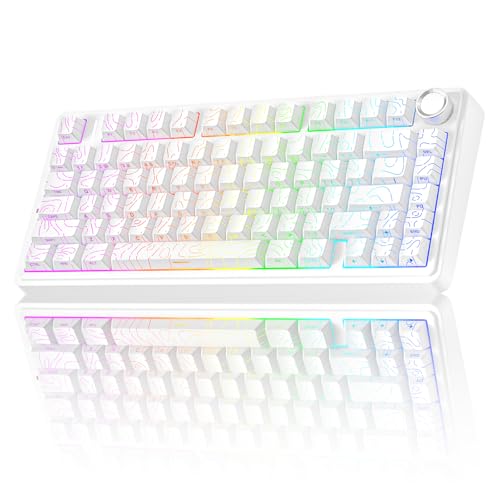
Why Is My Keyboard Split?
 By Theo LangUpdated
A keyboard looks split when its keys are divided into two halves, or when an on-screen keyboard is split into two groups at the edges of a tablet screen. Split keyboards put one half of the keys under each hand, with a gap in the middle. A split on-screen keyboard is a tablet setting that moves the keys to the sides so you can hold the tablet with both hands.
A split layout divides the keys in two
On a split keyboard, the keys sit in two groups with a gap between them. The left group holds the keys typed with the left hand, and the right group holds the keys typed with the right hand. Some split keyboards are one board with a gap in the middle, and some are two separate halves joined by a cable, so each half can sit where each hand rests.
Check whether it is the on-screen keyboard
On a tablet, the split you see may be the on-screen keyboard, not the hardware. The tablet splits the on-screen keys into two groups at the left and right edges so your thumbs can reach them while you hold the tablet. Open the keyboard settings on the tablet and turn off the split keyboard option to put the keys back into one row across the screen.
Look for a split keyboard setting
A keyboard can split because a setting is turned on. Check the keyboard settings on your device for a split layout or split keyboard option, and turn it off if you want a single keyboard. If the keyboard is a physical split keyboard, there is no setting to undo the split: the two halves are how the board is built, and the keys stay in two groups.
Try a full keyboard if the split bothers you
If you want all the keys on one board, look for a keyboard with a full or 96% layout, which keeps the letters, numbers and a number pad on a single board. The AULA S99, YUNZII B98 PRO, SOLAKAKA A99 Pro and KiiBoom Phantom98 Lite are 96% layout keyboards with a number pad, so their keys stay together on one board instead of splitting into two halves.
Connect a physical keyboard to a tablet
A physical keyboard replaces the on-screen keyboard on a tablet. Connect it by Bluetooth or with a USB-C cable, and the on-screen keyboard stops appearing when you type. The keyboards here connect by Bluetooth 5.0, 2.4GHz wireless or USB-C. The AULA, SOLAKAKA and YUNZII keyboards work with Windows, Mac and Android. The AULA and SOLAKAKA also work with iOS. The KiiBoom works with Windows and Mac OS. Check the connection and system support your tablet needs before you buy.
What you need

AULA S99 Gaming Keyboard
A 96% layout membrane keyboard with a number pad, Bluetooth 5.0, 2.4GHz and USB-C connections, RGB backlight and a foldable two-stage stand.
View on Amazon
YUNZII B98 PRO 96% Wireless Mechanical Keyboard (Blue
A 96% layout wireless mechanical keyboard with a number pad, QMK/VIA support, hot-swappable switches, RGB backlight and a dual-style knob.
View on Amazon
SOLAKAKA A99 Pro Mechanical Keyboard
A 96% layout wireless mechanical keyboard with a number pad, an LCD screen, a metal knob, hot-swappable switches and RGB backlight.
View on Amazon
KiiBoom Phantom98 Lite 96% Wireless Mechanical Gaming Keyboard
A 96% layout wireless mechanical keyboard with a number pad, hot-swappable switches, VIA support, RGB backlight and an 8000mAh battery.
View on AmazonThese come from our ranked list Best 96 Keyboard, which compares them spec by spec.
FAQ
Can I turn off a split keyboard on a tablet?
Yes. Open the keyboard settings on the tablet and turn off the split keyboard option. A physical keyboard connected by Bluetooth or USB-C also replaces the on-screen keyboard.
Is a split keyboard the same as a compact keyboard?
No. A split keyboard divides the keys into two halves with a gap between them. A compact 96% keyboard keeps the keys on one board and adds a number pad.
Why do some keyboards have a gap in the middle?
The gap separates the keys into a left group and a right group, so each hand has its own set of keys. On a split keyboard the gap is part of the board design, not a fault.