
What Refresh Rate Should a Gaming Monitor Have?
 By Theo LangUpdated
For most gaming, a 144 Hz monitor is a good match, and 240 Hz suits fast competitive play. The refresh rate sets how many times per second the screen draws a new image, so a higher rate shows motion in smaller steps. Match the rate to the games you play, the resolution you want, and the size and ports that fit your desk.
What refresh rate means
Refresh rate, measured in Hz, is how often the screen draws a new image each second. A 60 Hz screen draws 60 images per second, a 144 Hz screen draws 144, and a 240 Hz screen draws 240. Each new image replaces the last, so higher rates show movement in smaller steps and fast motion looks smoother. The rate is a property of the monitor, and the picture still depends on the game and the PC driving it.
Pick a rate for your games
Start with the games you play most. Fast competitive games, where you track quick movement across the screen, gain the most from 144 Hz or 240 Hz. Slower story-driven games and strategy games show less of a difference, so 120 Hz or 144 Hz is often enough there. Check the requirements published for your games before you decide, since the monitor alone does not set how the game runs.
Match resolution and screen size
Resolution and size shape the picture as much as the refresh rate. A 24-inch screen at 1080p gives a sharp image for fast play, while a 27-inch screen pairs well with 1440p for a larger view. A higher resolution asks more of the PC, so balance the resolution against the refresh rate you want. Sit at your usual distance and check that the size fits your desk before you buy.
Check the ports and sync support
The cable and port must carry the rate you want. DisplayPort and HDMI are the common connections on gaming monitors, and the monitor lists which rate each port supports, so check the listing and the manual for the rate you plan to use. Adaptive sync, such as FreeSync Premium or G-Sync compatibility, matches the screen to the picture the PC sends and helps avoid tearing. Confirm the monitor lists the sync support you need.
What you need

Sceptre 24.5-inch Gaming Monitor 1ms E255B-FWD240
A 24.5-inch monitor with a 240 Hz refresh rate, two DisplayPort and two HDMI ports, 100% sRGB and built-in speakers.
View on Amazon
SANSUI 24.5-inch G25X1
A 24.5-inch FHD 1080P Fast IPS monitor with up to 240 Hz over HDMI, two DisplayPort and two HDMI ports, HDR and VESA support.
View on Amazon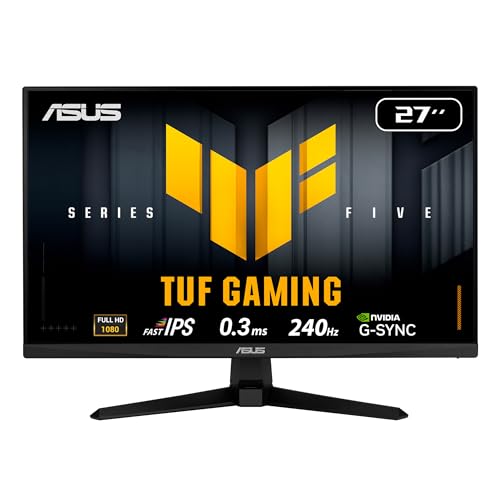
ASUS TUF VG279QM5A 27-inch Fast Gaming Monitor
A 27-inch 1080p Fast IPS monitor with a 240 Hz refresh rate, FreeSync Premium, G-Sync compatibility and a 3-year warranty.
View on Amazon
ASUS TUF Gaming VG259QM5A 25-inch Gaming Monitor
A 1080p Fast IPS monitor with a 240 Hz refresh rate, FreeSync Premium, G-Sync compatibility, ELMB Sync and a 3-year warranty.
View on AmazonThese come from our ranked list Best Gaming Monitor Hz, which compares them spec by spec.
FAQ
Is 60 Hz enough for gaming?
It works, and many games are playable at 60 Hz. A 144 Hz screen shows faster motion in smaller steps, which is easier to follow in quick games.
Do I need a new cable for 240 Hz?
Use the cable and port the monitor lists for 240 Hz, often DisplayPort. Check the monitor manual for which port supports that rate before you buy a cable.
Does a higher refresh rate help in every game?
It helps most where the picture moves fast, such as racing and competitive games. In slow games the difference is smaller, so weigh the rate against resolution and size.


