
What Do You Call the Camera on a Laptop?
 By Theo LangUpdated
The camera on a laptop is called a webcam. It sits in the top bezel above the screen, with a small lens and often a built-in microphone beside it. Video apps use it for calls, meetings and recordings, and you can add an external webcam when you want a sharper picture or a wider view.
The built-in webcam
The camera built into a laptop is called a webcam, and some people call it the built-in camera or integrated camera. It sits in the top edge of the screen, with a small lens that faces you while you look at the display. A small microphone often sits beside it, so video apps pick up your voice without a separate mic. The webcam turns on only when an app asks for it, such as a video call or a recording app. If a call shows a black screen, check that the app has camera permission in your system settings.
What the numbers on a webcam mean
A webcam lists a resolution, such as 720p, 1080p or 4K. Resolution sets how much detail the picture holds, so a higher resolution gives a sharper picture. Autofocus keeps your face sharp as you move, and some webcams add light correction that adjusts exposure when the room is bright or dark. Read the resolution in the listing, then check what your video app supports.
When an external webcam helps
An external webcam clips to the top of your laptop screen or sits on a shelf behind your desk, and it plugs in through USB-A or USB-C. It helps when the built-in camera picture looks soft, when you want a wider view of the room, or when you want a camera you can move between computers. The Logitech C270 clips to a screen or folds flat to sit on a shelf, and the OBSBOT Meet 2 connects with a single USB-C cable. Plug the camera in, then pick it in your video app's camera settings.
Microphones and framing
Many webcams carry built-in microphones, so you do not need a separate mic for calls. The OBSBOT Meet 2 and the Logitech Brio list dual microphones, and the Lenovo Essential lists dual microphones with a built-in privacy shutter. Field of view sets how much of the room the camera shows: the C270 lists a 55-degree field of view, and the Brio lets you pick between three presets. Autofocus keeps the picture sharp as you move, and the Meet 2 adds gesture control for framing and zoom. Open the camera's app to adjust these settings.
Privacy and turning the camera off
A webcam only records when an app is using it, and you can cover the lens when a call ends. The Lenovo Essential has a built-in manual privacy shutter that slides closed over the lens. On other laptops, close the video app or turn the camera off in the app's settings, and check the small light beside the lens, which shows when the camera is on. If your laptop has a camera cover or a switch, use that between calls.
What you need

OBSBOT Meet 2-4K Webcam for PC
A 4K webcam with autofocus, AI framing and dual microphones, connecting over USB-C with gesture control and HDR.
View on Amazon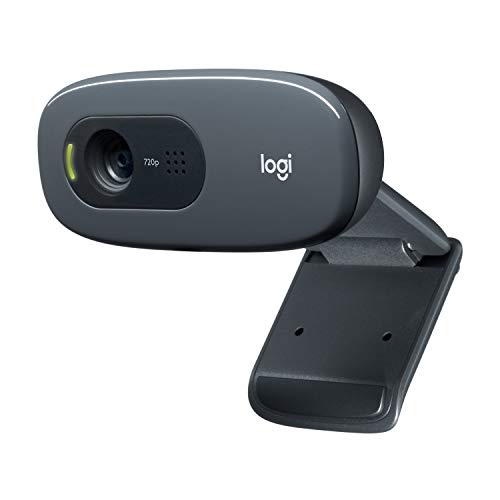
Logitech C270 Webcam Plug-and-Play Wide Screen Video Calling
A 720p webcam with auto light correction and a noise-reducing mic, clipping to a laptop screen or sitting on a shelf.
View on Amazon
Logitech Brio 4K Webcam
A 4K webcam with autofocus, 5x digital zoom and dual noise-canceling microphones, with three field-of-view presets.
View on Amazon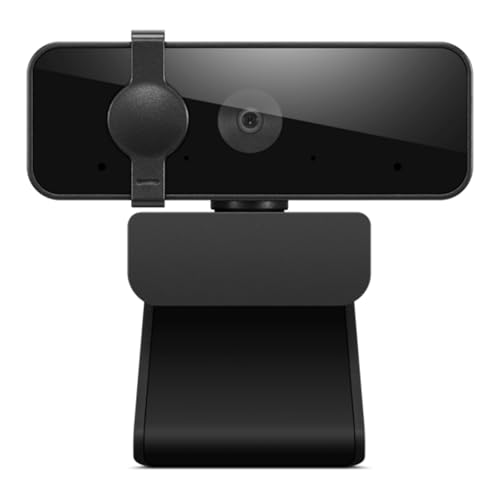
Lenovo Essential Webcam Gen 2
A 1080p webcam with dual microphones, an 85-degree field of view and a built-in manual privacy shutter, connecting over USB-A.
View on AmazonThese come from our ranked list Best Webcam for Laptop, which compares them spec by spec.
FAQ
Is a webcam the same as a laptop camera?
Yes. Webcam is the name for the camera on a laptop, used for video calls, meetings and recordings. The same word covers the built-in camera and an external camera that plugs in over USB.
Can you use an external webcam with a laptop?
Yes. Plug the webcam into a USB-A or USB-C port, clip it to the top of the screen, then pick it in your video app's camera settings. Check that the port on your laptop matches the plug on the camera.
Why does my laptop camera look blurry?
Wipe the lens with a soft, dry cloth, then sit facing a light so your face is lit from the front. If the picture stays soft, check the camera resolution in your video app's settings and try an external webcam.


