
How to Use a Webcam on a Laptop
 By Theo LangUpdated
To use a webcam on a laptop, plug it into a USB port, open the app you want to use it in, and select it as the camera in that app's settings. If your laptop has a built-in camera, you can switch between it and the external webcam in the same settings. A trial call or recording shows whether the picture and sound work before a real call.
Plug in the webcam
Connect the webcam to a USB port on your laptop, using the cable it came with. The laptop should list the webcam as a camera once it is connected. If the webcam has a clip, attach it to the top of the laptop screen, or fold the clip and set the webcam on a shelf behind the laptop so it faces you.
Select the webcam in your app
Open the video app you plan to use, then open its video settings. Choose the external webcam from the camera list instead of the built-in camera. If the webcam has a built-in microphone, choose it in the app's audio settings as well, so the sound comes from the webcam and not from the laptop.
Frame the shot and check the light
Look at the preview in the app and adjust the webcam until your head and shoulders sit in the middle of the frame. Tilt the webcam up or down rather than moving the laptop. Sit facing a light source, such as a window or a lamp, so the light falls on your face instead of coming from behind you.
Check picture and sound before the call
Record a short clip or join a trial call in the app and play it back. Check that the picture is steady and that your voice comes through clearly. If the picture is dark, add light in front of you. If the sound is faint, move closer to the webcam or raise the microphone level in the app's audio settings.
What you need

OBSBOT Meet 2-4K Webcam for PC
A 4K webcam with autofocus, AI framing and dual microphones that connects through a single USB-C cable.
View on Amazon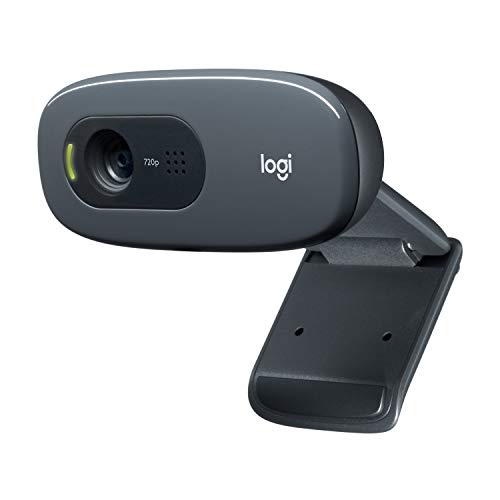
Logitech C270 Webcam Plug-and-Play Wide Screen Video Calling
A 720p webcam with a noise-reducing mic and an adjustable clip that attaches to a laptop screen or sits on a shelf.
View on Amazon
Logitech Brio 4K Webcam
A 4K webcam with autofocus, 5x digital zoom and dual noise-cancelling microphones, with an adjustable field of view.
View on Amazon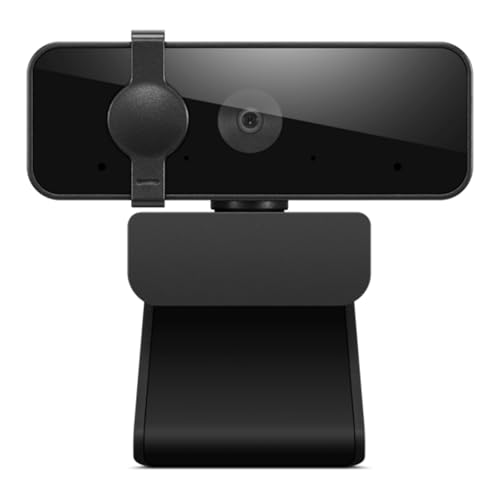
Lenovo Essential Webcam Gen 2
A 1080p webcam with dual microphones, an 85 degree field of view and a built-in manual privacy shutter, connected by USB-A.
View on AmazonThese come from our ranked list Best Webcam for Laptop, which compares them spec by spec.
FAQ
Do I need to install software for a USB webcam?
A USB webcam appears as a camera choice in your video app once you plug it in. Some models add extra controls through the maker's own software, which you can install if you want those controls.
Why does my app still show the built-in camera?
Video apps keep the camera you last picked. Open the app's video settings, select the external webcam by name, and check the preview shows the new camera before you join the call.
Can I use the webcam microphone instead of a headset?
Yes, if the webcam has a built-in microphone. Pick the webcam as the microphone in the app's audio settings and check it with a short recording before the call.


