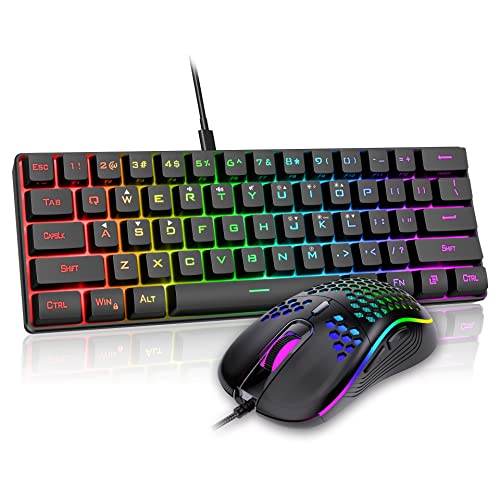
How to Connect a Keyboard and Mouse to a Laptop
 By Theo LangUpdated
Plug a wired keyboard or mouse into a USB port on the laptop, or pair a wireless one over Bluetooth or its 2.4GHz receiver, and it works next to the built-in keyboard and trackpad. You can use an external keyboard and mouse at the same time as the laptop's own controls. The steps below cover wired, Bluetooth and receiver connections.
Connect a wired keyboard and mouse
Plug the USB cable into a USB port on the laptop. A keyboard with a USB-C cable plugs into a USB-C port on the laptop, or into a USB-A port with an adapter. The laptop should spot the keyboard and mouse at once, and you can type or move the pointer to check. If nothing happens, try another USB port on the laptop.
Pair a Bluetooth keyboard and mouse
Switch the keyboard to Bluetooth mode first. On the laptop, open Bluetooth settings and turn Bluetooth on. Put the keyboard or mouse in pairing mode, then pick its name from the list of devices. If the laptop shows a code, type it on the keyboard and press Enter. Once paired, the device reconnects when you switch it on and the laptop is in range.
Use a 2.4GHz receiver
Plug the small USB receiver into a USB port on the laptop. Switch the keyboard or mouse on and set it to the 2.4GHz mode, and the laptop should spot it without any pairing step. Keep the receiver in the laptop while you use the keyboard or mouse. If the pointer or keys stop responding, plug the receiver into a different USB port and switch the device off and on again.
Fix a keyboard or mouse that does not respond
First check that the keyboard or mouse is switched on and charged. For a wireless device, check that Bluetooth is on or that the receiver is plugged in firmly. Try another USB port for a wired device or a receiver. If the laptop still does not see the device, turn Bluetooth off and on again, or unplug the receiver and plug it back in. A device that works on another computer points to a setting on the laptop.
What you need

AULA S99 Gaming Keyboard
A 96% membrane keyboard with Bluetooth 5.0, 2.4GHz and USB-C connections, a number pad, RGB backlight and programmable keys.
View on Amazon
YUNZII B98 PRO 96% Wireless Mechanical Keyboard (Blue
A 96% mechanical keyboard with Milk switches, hot-swap sockets, QMK/VIA support, RGB backlight and tri-mode Bluetooth 5.0, 2.4GHz and USB-C.
View on Amazon
SOLAKAKA A99 Pro Mechanical Keyboard
A 96% hot-swappable keyboard with an LCD screen, a metal knob, RGB backlight and tri-mode BT5.0, 2.4GHz and USB-C connections.
View on Amazon
KiiBoom Phantom98 Lite 96% Wireless Mechanical Gaming Keyboard
A 96% mechanical keyboard with Mochi switches, hot-swap sockets, VIA support, RGB backlight and tri-mode 2.4GHz, USB-C and BT 5.0.
View on AmazonThese come from our ranked list Best 96 Keyboard, which compares them spec by spec.
FAQ
Can I use a keyboard and mouse at the same time on a laptop?
Yes. A wired or wireless keyboard and mouse work at the same time as the laptop's built-in keyboard and trackpad, so you can switch between them without changing any setting.
Do I need a receiver for a wireless keyboard?
It depends on the connection. A Bluetooth keyboard pairs with the laptop directly, while a 2.4GHz keyboard needs its own USB receiver plugged into the laptop. Check the keyboard's connection modes before you buy.
Why does my wireless keyboard keep disconnecting?
A low battery is the first thing to check, then move the receiver closer to the keyboard or switch Bluetooth off and on again. Other wireless devices nearby can also break the link, so try the keyboard closer to the laptop.