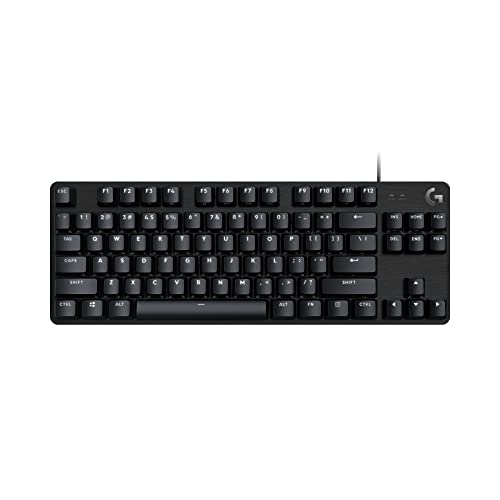
How to Use a Gaming Keyboard
 By Theo LangUpdated
Plug a gaming keyboard into a USB port and it works as a normal keyboard. Then set the backlight, the knob modes and the macros, and switch the connection to Bluetooth or 2.4GHz when you want it wireless. The steps below use the boards on this page: the two AULA F75 Pro boards, the Redragon K521 and the Redragon K671.
Connect the keyboard
Wired boards plug into a USB port and need no driver: the Redragon K521 is plug and play across Windows, macOS, PS4, PS5 and Xbox. The AULA F75 Pro boards offer three ways to connect: Bluetooth 5.0, 2.4GHz wireless and a USB wired connection, and they connect to up to 5 devices at the same time. Switch between those devices with the shortcut keys or the side button. The Redragon K671 is a wired board that connects over USB. Pick the connection that fits the device in front of you.
Set the backlight and the knob
The AULA boards light up with RGB backlight, and the knob changes the lighting: in gaming mode, rotate the knob to adjust brightness and click it to switch effects; in office mode, rotate it to adjust volume and click it to play or pause. Long press the knob for about 5 seconds to switch modes. The black AULA F75 Pro has 16.8 million RGB colors and 16 preset lighting effects. The Redragon K521 has a one-touch lighting button, a three-position lighting mode and a four-position brightness mode. The Redragon K671 offers 11 backlight modes with brightness across 5 levels. Turn the backlight off when you do not need it.
Program macros and lock the Windows key
The AULA F75 Pro boards let you customize single keys and key combinations through the F75 driver, and they support N key rollover with a Windows key lock to prevent accidental touches during games. The Redragon K671 also supports macro editing: remap keys, set shortcuts, or combine key functions in one key. The Redragon K521 skips software entirely with 12 multimedia keys for common shortcuts. Set the macros before you start a game, and check the software notes for the board you own.
Swap a switch without soldering
The AULA F75 Pro boards have a hot-swappable base that supports 3-pin or 5-pin switch replacement without soldering, so a beginner can change switches. The Redragon K671 is also hot-swappable, with a linear red switch and 4 spare switches in the box to exchange a switch when it does not work. Match the pin count of the new switch to the base before you press it in, and keep the spare switches where you can find them.
Charge a wireless keyboard
The AULA F75 Pro boards are rechargeable and carry a 4000mAh battery. Use the USB-C wired connection, or pair them over Bluetooth 5.0 or 2.4GHz. A board that stops holding a charge or drops its connection needs a check of the cable and the port before anything else. Wired boards such as the Redragon K521 and the Redragon K671 need no charging at all.
What you need

AULA F75 Pro Wireless Mechanical Keyboard
A 75% wireless board with LEOBOG reaper switches, a knob, RGB backlight, tri-mode connection and a 6-month warranty.
View on Amazon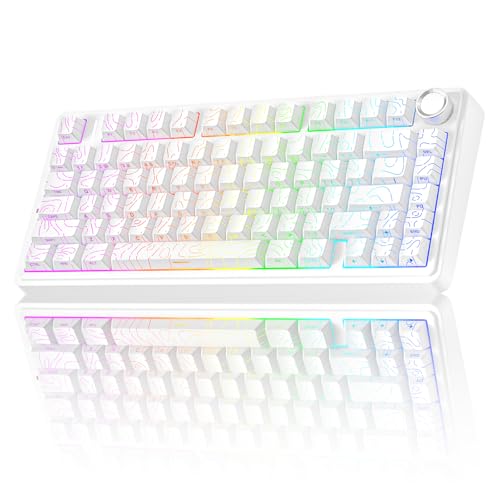
AULA F75 Pro Wireless Mechanical Keyboard
A 75% wireless board with LEOBOG star vector switches, a knob, RGB backlight, tri-mode connection and a 1-year warranty.
View on Amazon
Redragon K521 Upgrade Rainbow LED Gaming Keyboard
A wired 104-key board with a mechanical feel, a rainbow LED backlight, 19-key anti-ghosting, 12 multimedia keys and plug-and-play setup.
View on Amazon
Redragon Mechanical Gaming Keyboard Wired
A wired mechanical board with a hot-swappable red switch, 11 backlight modes, macro editing and 4 spare switches.
View on AmazonThese come from our ranked list Best Gaming Keyboard, which compares them spec by spec.
FAQ
Can I use a gaming keyboard with a console?
Yes. The AULA F75 Pro boards work with PS and Xbox, and the Redragon K521 works with PS4, PS5 and Xbox. Connect over USB or pair over Bluetooth where the console supports it.
Do I need software for a gaming keyboard?
Not always. The Redragon K521 needs no driver and is plug and play. The AULA boards use the F75 driver for macros, and the Redragon K671 adjusts its backlight effects through software.
How do I switch an AULA keyboard between devices?
The AULA F75 Pro connects to up to 5 devices at the same time over Bluetooth 5.0, 2.4GHz or USB. Switch with the shortcut keys or the side button, and use the knob to change modes.