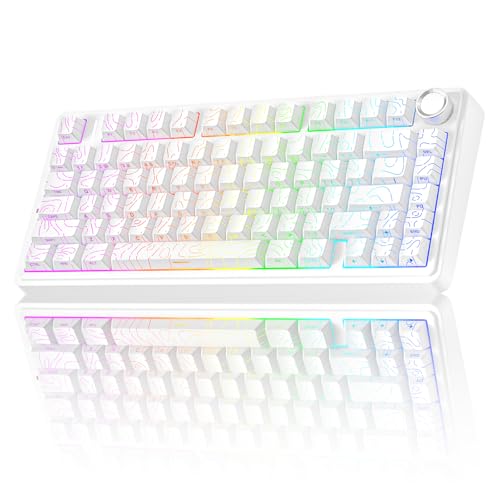
How to Use an Ergonomic Keyboard
 By Theo LangUpdated
An ergonomic keyboard is a keyboard with a compact 96% layout that keeps the number pad and function keys close to the letter keys. To use one, place it at elbow height, set the tilt so your wrists stay flat, and let your fingers rest on the home row. Give your hands time to adjust to the new layout.
Place the keyboard at elbow height
Sit in your chair with your shoulders relaxed and your elbows bent comfortably at your sides. The keyboard should sit at the height of your elbows, with your forearms reaching forward flat and your wrists straight. If the keyboard sits too high, your shoulders rise and your wrists bend back. If it sits too low, your wrists bend down. Raise or lower your chair, or move the keyboard to a tray, until your wrists stay in line with your forearms while you type.
Set the tilt and wrist angle
A keyboard with an adjustable stand lets you change its front-to-back angle. Start with the keyboard flat, then raise the front edge a little if your wrists bend upward, or raise the back edge if your wrists bend downward. The aim is a straight line from forearm to hand, with no bend at the wrist. Rest your palms on the desk or a wrist rest only between typing, not while you press keys, so your wrists stay free to move.
Learn the layout and home row
A 96% layout keeps the number pad, arrow keys and function keys close to the letter keys, so you can reach them without moving your hands far. Put your index fingers on the keys with the small raised marks on F and J, and let the other fingers fall on the keys beside them. Reach for the keys at the edges with the nearest finger instead of moving your whole hand. Short practice sessions each day help your fingers learn the new positions.
Connect the keyboard and adjust the settings
These keyboards connect over Bluetooth, 2.4 GHz wireless or a USB-C cable. Plug in the cable or pair over Bluetooth, then open your system settings and check that the keyboard layout matches the one printed on the keys. If the keyboard has a knob or shortcut keys, use them to change volume or lighting while you work. Check that the keys you use most, such as the number pad and function keys, work as expected before you start a long typing session.
What you need

AULA S99 Gaming Keyboard
A membrane keyboard with a 96% layout, a foldable two-stage stand, Bluetooth 5.0, 2.4 GHz and USB-C connections, RGB backlighting and full-key macro programming.
View on Amazon
YUNZII B98 PRO 96% Wireless Mechanical Keyboard (Blue
A 96% mechanical keyboard with Milk V2 linear switches, a dual-stage adjustable stand, QMK/VIA support, hot-swappable switches and a 8000 mAh battery.
View on Amazon
SOLAKAKA A99 Pro Mechanical Keyboard
A 96% mechanical keyboard with LEOBOG star vector switches, an LCD screen, a metal knob, hot-swappable switches, a gasket structure and RGB backlighting.
View on Amazon
KiiBoom Phantom98 Lite 96% Wireless Mechanical Gaming Keyboard
A 96% mechanical keyboard with Mochi switches, VIA support, hot-swappable switches, a gasket mount, RGB backlighting and an 8000 mAh battery.
View on AmazonThese come from our ranked list Best 96 Keyboard, which compares them spec by spec.
FAQ
How long does it take to get used to an ergonomic keyboard?
Short practice sessions help your fingers learn the new layout. Keep your old keyboard nearby for long tasks at first, then switch back when the keys feel familiar under your fingers.
Can I use an ergonomic keyboard with a laptop?
Yes. Connect it over Bluetooth, 2.4 GHz wireless or a USB-C cable, and place the laptop on a stand so its screen sits at eye level. Check that your laptop's USB-C port supports the connection you plan to use.
Should my wrists rest on the desk while I type?
No. Keep your wrists floating in line with your forearms while you press keys, and rest them on the desk or a wrist rest only during pauses. Resting your wrists on a hard edge while typing bends them and adds pressure.