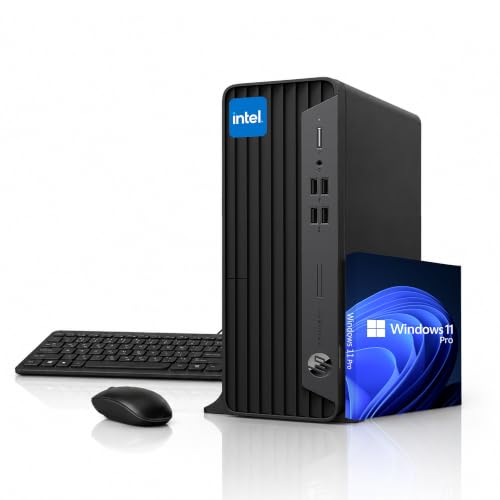
How to Set Up a Home Office Computer
 By Theo LangUpdated
Set up a home office computer by placing the tower where air can move around it, connecting the monitor, keyboard and mouse, plugging in power and the network, then switching it on and signing in to your account. Install the updates the system offers, connect your printer, and arrange the desk so the screen sits in front of you.
Pick the spot for the tower
Choose a spot near a power outlet and your router or network socket, with space around the case vents so air can move. Keep the tower on the desk or on a firm surface, away from heaters and out of direct sunlight. Leave the cables slack enough to reach the monitor and the wall without pulling.
Connect the monitor, keyboard and mouse
Connect the monitor to the desktop with an HDMI or DisplayPort cable, and set the monitor on the desk in front of you. Plug the keyboard and mouse into USB ports, or pair them over Bluetooth, then check that the pointer and keys respond.
Plug in power and the network
Plug the power cable into the tower and a wall outlet, and switch the power supply on if it has its own switch. For a wired connection, run an Ethernet cable from the router to the desktop; for wireless, connect to Wi-Fi during first setup. Keep the power cable clear of the chair legs and the walkway.
Switch on and finish first setup
Press the power button and follow the setup screens to choose a language, connect to the network and sign in. Let the system install the updates it offers, and set a PIN or password when asked. Check the requirements published for each program before you install it, so you know it runs on your machine.
Add your printer and daily software
Connect the printer with USB or over Wi-Fi, then add it in the system settings and print a page to check it works. Install the programs you use for work, such as your browser, email and office apps, and sign in to each one. Arrange the icons on the desktop so the programs you open each day sit within easy reach.
What you need

YAWYORE Gaming PC
A tower with an AMD Ryzen 7 5700X, GeForce RTX 5060, 32GB DDR4 RAM and a 1TB NVMe SSD, plus Wi-Fi and Bluetooth; remove the foam inside before first use.
View on Amazon
Dell Pro Desktop Tower
A compact tower with a 14th Gen Intel Core i3-14100, 8GB DDR5 RAM and a 512GB SSD, running Windows 11 Pro, with DisplayPort, HDMI, Wi-Fi 6 and Bluetooth.
View on Amazon
OKAMUS Prebuilt PC
A tower with an i7 CPU up to 3.9GHz, 16GB RAM and a 256GB M.2 SSD, with four RGB fans, Win11 Home, Wi-Fi 6 and a 400W power supply.
View on Amazon
ZYNEEX Prebuilt Gaming Desktop PC
A tower with an AMD Ryzen 5 5500, GeForce RTX 3050 6GB, 16GB DDR4 RAM and a 1TB NVMe SSD, with built-in Wi-Fi, HDMI and DisplayPort outputs.
View on AmazonThese come from our ranked list Best Desktop PC Computers, which compares them spec by spec.
FAQ
Can I use a TV as a home office monitor?
Yes, if the TV has an HDMI input and the desktop has an HDMI output. A TV works as a large screen, but text can look less sharp than on a monitor built for desk work.
Do I need Wi-Fi for a home office computer?
No. A wired Ethernet connection works, and all four desktops here also include Wi-Fi. Wired Ethernet suits video calls, while Wi-Fi suits rooms without a network socket.
How do I keep the computer cool on a desk?
Leave space around the case vents and keep the tower out of direct sunlight and away from heaters. If you open the case, shut the computer down, unplug it first and follow the maker's manual. Clear dust from the vents when airflow drops.