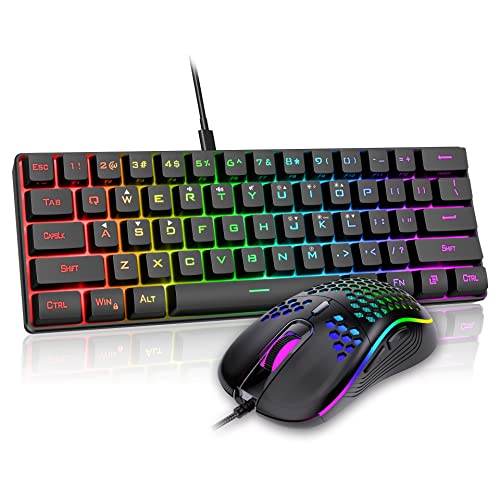
How to Sanitize a Keyboard and Mouse
 By Theo LangUpdated
To sanitize a keyboard and mouse, switch them off or unplug them, shake out loose crumbs, wipe the surfaces with a lightly damp cloth, and clean between the keys. Let everything dry fully before you plug it back in or switch it on. Clean them when the keys look dirty, feel sticky, or the mouse surface feels grimy.
Switch off and unplug first
Switch the keyboard and mouse off, or unplug them from the computer, before you clean them. Wireless devices should be switched off so no keys are pressed while you work. Move the keyboard and mouse to a clear surface with room to turn the keyboard over, and keep liquids away from the computer itself.
Shake out crumbs and dust
Turn the keyboard upside down over a bin and shake it gently to drop out loose crumbs, then tap it lightly to loosen what stays behind. Use a soft brush or a can of compressed air to clear dust from between the keys. Wipe the mouse with a dry cloth first to take off surface dust before you dampen anything.
Wipe the keys and mouse
Dampen a soft cloth with water and a little mild dish soap, then wring it out so it is only lightly damp. Wipe the tops of the keys, the spaces between them, and the top, buttons and wheel of the mouse. Keep liquid out of the gaps around the keys and the mouse buttons, and dry the surfaces with a second cloth.
Clean under the keycaps if they come off
Check your keyboard manual before you pull off any keycap. The YUNZII B98 PRO, SOLAKAKA A99 Pro and KiiBoom Phantom98 Lite are hot-swappable, so their keycaps and switches can be removed without soldering. The AULA S99 is a membrane keyboard and does not support hot-swapping. The SOLAKAKA A99 Pro comes with a keycap puller. Lift each cap straight up, wipe underneath, and put each cap back in its place.
Let everything dry, then reconnect
Leave the keyboard and mouse to air dry until no dampness is left on the keys, the buttons or the wheel. Do not plug them back in or switch them on while they still feel damp. Once they are dry, reconnect them, switch them on, and press a few keys and buttons to check they all work.
What you need

AULA S99 Gaming Keyboard
A 96% membrane keyboard with Bluetooth 5.0, 2.4GHz wireless and USB-C connections, a numeric keypad, RGB backlight and programmable keys.
View on Amazon
YUNZII B98 PRO 96% Wireless Mechanical Keyboard (Blue
A 96% wireless mechanical keyboard with Milk V2 linear switches, hot-swappable keys, a numeric keypad, RGB backlight and QMK/VIA support.
View on Amazon
SOLAKAKA A99 Pro Mechanical Keyboard
A 96% wireless mechanical keyboard with an LCD screen, a metal knob, hot-swappable switches, RGB backlight and an 8000mAh battery.
View on Amazon
KiiBoom Phantom98 Lite 96% Wireless Mechanical Gaming Keyboard
A 96% wireless mechanical keyboard with Mochi switches, hot-swappable keys, RGB backlight, VIA support and an 8000mAh battery.
View on AmazonThese come from our ranked list Best 96 Keyboard, which compares them spec by spec.
FAQ
How often should I sanitize my keyboard and mouse?
Clean them when keys look dirty or stick, when the mouse feels grimy, or when crumbs collect between the keys. Follow the cleaning notes in the maker's manual for your keyboard and mouse.
Can I use a wet cloth on a keyboard?
Use a cloth that is only lightly damp, and wring it out first so no water drips into the keyboard. Wipe the key tops and the mouse, then dry them with a second cloth. Never pour water on a keyboard or mouse, and never clean them while they are plugged in or switched on.
Can I remove the keycaps to clean underneath?
It depends on the keyboard. The YUNZII B98 PRO, SOLAKAKA A99 Pro and KiiBoom Phantom98 Lite are hot-swappable, so their keycaps and switches can be removed. The AULA S99 is a membrane keyboard and does not support hot-swapping, so check your manual before you pull any keycap.