
How to Connect an External Webcam to a Laptop
 By Theo LangUpdated
To install an external camera on a laptop, plug the webcam into a USB port and clip it to the top of the screen. Open your video app settings and pick the external camera and its microphone. If the picture looks dark or the sound is low, adjust the settings in the video app or the camera's own app.
Plug the camera into a USB port
Plug the webcam cable into a free USB port on the laptop. The OBSBOT Meet 2 connects through USB-C. The Lenovo Essential FHD Gen 2 connects through USB-A, so check the plug against the ports on your laptop. Wait for the laptop to recognize the camera before you open a video app. If nothing appears, try another USB port.
Clip the camera to the screen
Set the camera on top of the laptop screen with its clip, and aim the lens at your face. The Logitech C270 has an adjustable universal clip that also folds to set the camera on a shelf. Tilt the camera until your head and shoulders sit in the frame, and slide the Lenovo privacy shutter open before you start a call.
Pick the camera in your video app
Open the video app you plan to use, such as Zoom or Skype, and open its video settings. Pick the external camera from the camera list and the camera's microphone from the microphone list. Open the app's preview to check the picture and sound before a real meeting.
Adjust the picture and sound
If the picture is too dark, turn on the light in front of you and move away from a bright window behind you. The Logitech Brio adjusts exposure and contrast for glare and backlighting, and the Logitech C270 adjusts to lighting conditions. For extra controls, open the camera's own app, such as OBSBOT Center for the OBSBOT Meet 2 or Logi Options+ for the Logitech Brio.
What you need

OBSBOT Meet 2-4K Webcam for PC
A 4K webcam with autofocus, AI framing and dual microphones that connects through a single USB-C cable.
View on Amazon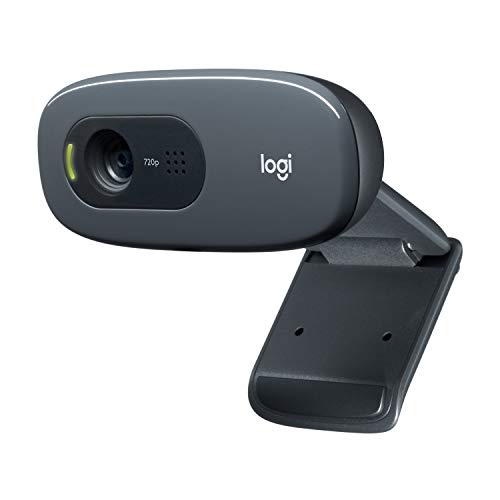
Logitech C270 Webcam Plug-and-Play Wide Screen Video Calling
A 720p webcam with a noise-reducing microphone and an adjustable clip for the top of a laptop screen.
View on Amazon
Logitech Brio 4K Webcam
A 4K webcam with autofocus, 5x digital zoom and dual microphones, with three field of view presets.
View on Amazon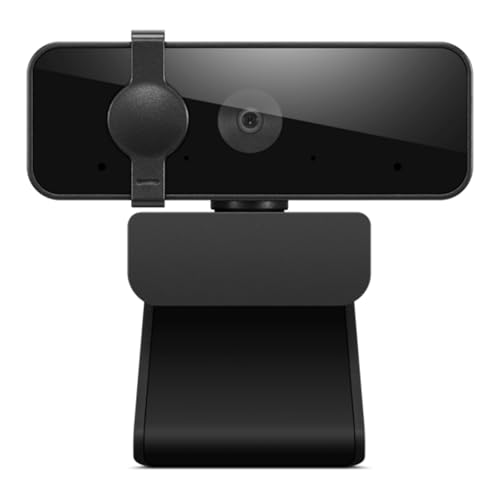
Lenovo Essential Webcam Gen 2
A 1080p webcam with dual microphones and a built-in privacy shutter that connects through USB-A.
View on AmazonThese come from our ranked list Best Webcam for Laptop, which compares them spec by spec.
FAQ
Do I need to install software for an external webcam?
Not for basic use. Plug the camera into a USB port and pick it in your video app settings. The maker's app adds extra controls, such as framing and picture adjustments, only if you want them.
Why does my laptop still use its built-in camera?
Your video app may still be set to the built-in camera. Open the app's video settings and pick the external camera from the camera list. Check that the camera is plugged in and any privacy shutter on it is open.
Can I use an external webcam with a laptop that only has USB-A ports?
Yes. The Lenovo Essential FHD Gen 2 connects through USB-A, so it fits a laptop with a USB-A port. Check the plug on any camera against the ports on your laptop before you buy.


