
How to Install a Webcam on a Laptop
 By Theo LangUpdated
To install a webcam on a laptop, clip the camera to the screen, plug its cable into a USB port, and pick it as the camera in your video app. The OBSBOT Meet 2 and Logitech C270 are listed as plug-and-play, so they are ready once plugged in, with no extra software to install. If the picture does not show, check the app settings and the cable.
Clip the camera to the screen
Open the clip on the back of the webcam and set it on the top edge of the laptop screen, with the lens facing you. Push the clip until it sits flat and the camera does not wobble when you type. If the clip folds flat, you can also set the camera on a shelf behind the laptop and point it at your seat.
Plug the cable into a USB port
Plug the webcam cable into a USB port on the laptop, USB-C or USB-A to match the cable on your camera. The laptop should spot the new camera and load its driver on its own. If nothing happens, try a different USB port on the laptop, and check that the cable is pushed in all the way at both ends.
Pick the camera in your video app
Open your video app and go to its video settings. Pick the new webcam from the camera list, and pick its microphone from the microphone list if the camera has one. The preview in the settings shows what the other side sees, so you can check the framing before the call starts.
Set the angle and the light
Tilt the camera so it points at your face, not up at the ceiling or down at the desk. Sit facing a lamp or a window so the light falls on your face, and avoid a bright window behind you, which turns you into a dark shape on screen. Move the laptop closer or farther away until your head and shoulders fill the frame.
Cover the lens when you finish
When the call ends, close the camera in your video app and unplug the webcam if you will not use it again soon. If your webcam has a privacy shutter, slide it closed so the lens is covered. Store the camera with the lens facing away from anything that could scratch it.
What you need

OBSBOT Meet 2-4K Webcam for PC
A 4K webcam with a 1/2-inch sensor, AI framing and autofocus, a USB-C connection and dual microphones.
View on Amazon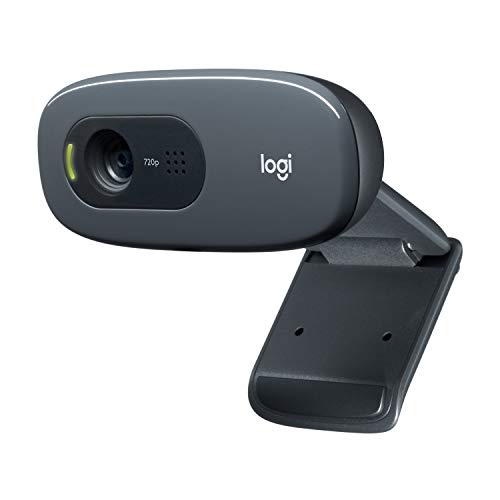
Logitech C270 Webcam Plug-and-Play Wide Screen Video Calling
A 720p webcam with a noise-reducing mic, auto light correction and an adjustable clip that fits a laptop screen or a shelf.
View on Amazon
Logitech Brio 4K Webcam
A 4K webcam with autofocus, 5x digital zoom, dual noise-cancelling microphones and adjustable field of view.
View on Amazon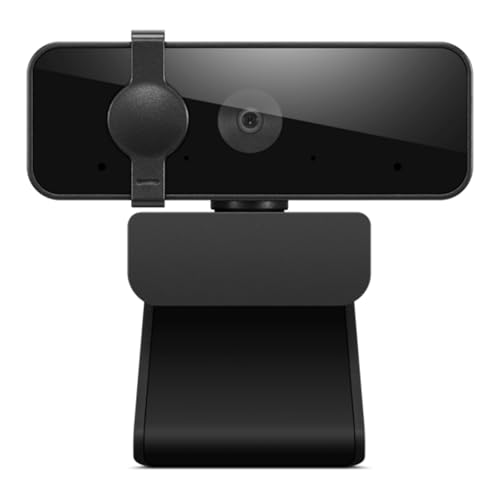
Lenovo Essential Webcam Gen 2
A 1080p webcam with dual microphones, an 85-degree field of view, a USB-A connection and a built-in manual privacy shutter.
View on AmazonThese come from our ranked list Best Webcam for Laptop, which compares them spec by spec.
FAQ
Do I need to install software for a webcam?
The OBSBOT Meet 2 and the Logitech C270 are listed as plug-and-play, so they work as soon as you plug them in. The maker may offer extra software for settings such as framing and zoom, but the camera works in video apps without it.
Why does my video app show the built-in camera?
Video apps keep using the camera they used last, so a new webcam does not take over on its own. Open the video settings in the app and pick the new webcam from the camera list, then check the preview.
Can I use a webcam with a laptop that has one built in?
Yes. Plug in the external webcam, then pick it in your video app settings. The built-in camera stays off while the external one is picked, and you can switch back to it any time.


