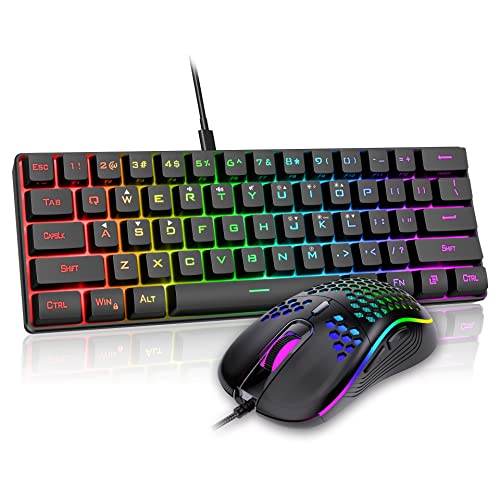
How to Disinfect a Keyboard and Mouse
 By Theo LangUpdated
Shut the computer down and unplug the keyboard and mouse before you clean them. Wipe the keys and the mouse shell with a disinfectant wipe or a soft cloth lightly dampened with disinfectant, clean between the keys, and let everything dry fully before you plug the set back in.
Shut down and unplug first
Shut the computer down before you clean anything. Unplug a wired keyboard and mouse, and switch off a wireless set or remove its batteries so no keys register while you wipe. This keeps the computer from typing stray characters and keeps liquid away from live ports. Check the maker's manual for your model before you open or remove anything.
Shake out crumbs and dust
Turn the keyboard upside down over a bin and tap its back gently so crumbs and dust fall out. Hold it at an angle so debris drops clear of the keys instead of settling deeper. Do the same over the mouse by turning it over and tapping it lightly. Wipe the desk under them before you set them back down.
Wipe the keys and mouse shell
Use a disinfectant wipe made for electronics, or a soft cloth lightly dampened with a disinfectant made for electronics. Wring the cloth out so no liquid drips. Wipe the top of each key, the spaces between the rows, and the whole mouse shell, including the buttons and the wheel. Keep liquid out of the gaps around the keys and away from charging ports.
Clean between the keys
For the gaps between keys, use a cotton swab or a soft brush lightly dampened with disinfectant. Work along each row and around the edges of larger keys such as the space bar and Enter. Do not push the swab hard under a key or pour liquid into the keyboard. If a key sticks after cleaning, check the maker's manual for your model.
Let everything dry before use
Leave the keyboard and mouse untouched until every surface feels dry to the touch. Do not plug them back in or switch them on while any dampness remains. Once dry, reconnect the cables or switch the wireless set back on and press a few keys to check that everything responds. Wash your hands after you finish cleaning.
What you need

AULA S99 Gaming Keyboard
A 96% membrane keyboard with a number pad and RGB backlight, connecting over Bluetooth 5.0, 2.4GHz, or USB-C.
View on Amazon
YUNZII B98 PRO 96% Wireless Mechanical Keyboard (Blue
A 96% wireless mechanical keyboard with hot-swappable Milk V2 linear switches, a gasket mount, and RGB backlight.
View on Amazon
SOLAKAKA A99 Pro Mechanical Keyboard
A 96% hot-swappable mechanical keyboard with an LCD screen, a metal knob, RGB backlight, and LEOBOG star vector switches.
View on Amazon
KiiBoom Phantom98 Lite 96% Wireless Mechanical Gaming Keyboard
A 96% wireless mechanical keyboard with hot-swappable Mochi switches, a gasket mount, RGB backlight, and VIA support.
View on AmazonThese come from our ranked list Best 96 Keyboard, which compares them spec by spec.
FAQ
Can I use a disinfectant wipe on a keyboard?
Yes, if the wipe is made for electronics. Wring out any excess liquid first, wipe the key tops and the mouse shell, keep liquid out of the gaps, and let the surfaces dry before use.
Should I remove the keycaps to clean under them?
Only if your keyboard's manual says the keycaps come off. Otherwise clean between the keys with a lightly dampened cotton swab and do not force anything loose.
How often should I clean my keyboard and mouse?
Clean them when the keys feel sticky, the surface looks dull, or the mouse wheel sticks. Wipe the parts you touch most whenever they show dirt or smudges.