
How to Connect a Webcam to a Laptop
 By Theo LangUpdated
Plug the webcam into a USB port on the laptop, clip it to the top of the screen, then pick it as the camera in your video app. The camera draws power through that same USB cable, so no separate power supply is needed. If the picture does not appear, check the app's camera setting and try another USB port.
Check which ports your laptop has
Look at the sides of the laptop for USB-A and USB-C ports before you buy or plug in a webcam. The Lenovo Essential FHD Webcam Gen 2 connects over USB-A 2.0 with a 1.8m integrated cable, while the OBSBOT Meet 2 connects over a single USB-C connection. Match the plug on the webcam to a free port on the laptop, and keep a note of which port you used so you can find it again later.
Plug the webcam into the laptop
Push the plug fully into the port and wait for the laptop to recognize the camera. The OBSBOT Meet 2 turns on through its single USB-C connection and is ready for use, with the OBSBOT Center software available for deeper settings. If the laptop does not recognize the camera, unplug it, try another USB port, and plug it in again.
Mount the webcam on the screen
Set the webcam on top of the laptop screen so the lens sits at eye level. The Logitech C270 has an adjustable universal clip that attaches to a screen or laptop, or folds so the webcam sits on a shelf. The Lenovo Essential FHD Webcam Gen 2 tilts from -20 degrees to 10 degrees and fits monitor thicknesses from 4 mm to 40 mm, so adjust the tilt until the frame looks level.
Select the webcam in your video app
Open the video app you plan to use and open its camera setting, then choose the webcam by name from the camera list. Do the same for the microphone: the OBSBOT Meet 2, Logitech Brio, Logitech C270, and Lenovo Essential FHD Webcam Gen 2 each have built-in microphones, so pick the webcam microphone if you want the camera and the sound from one device. Make a short call or a recording to confirm both picture and sound come through.
Frame the shot and adjust the light
Sit where the light falls on your face and move the webcam until your head and shoulders fill the frame. The OBSBOT Meet 2 uses AI framing and autofocus to hold the composition, and the Logitech Brio offers autofocus with 5x digital zoom and three field-of-view presets at 65, 78, and 90 degrees diagonal. The Logitech C270 adjusts to lighting with RightLight 2, and the Logitech Brio does the same with RightLight 3.
Close the shutter when you finish
When the call ends, close the built-in privacy shutter on the Lenovo Essential FHD Webcam Gen 2 to switch the camera off. For the other webcams here, unplug the USB cable when you want the camera off. Keep the cable and clip with the webcam so the next setup takes the same few steps.
What you need

OBSBOT Meet 2-4K Webcam for PC
A 4K webcam with autofocus and AI framing over a single USB-C connection, with dual microphones and gesture control for calls, streaming, and gaming.
View on Amazon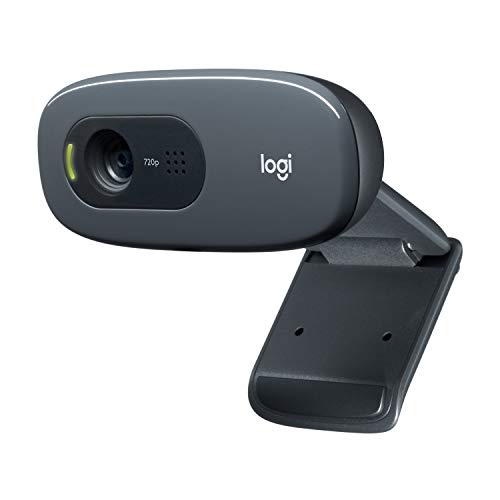
Logitech C270 Webcam Plug-and-Play Wide Screen Video Calling
A 720p webcam with a noise-reducing microphone, auto light correction, and a universal clip that attaches to a laptop screen or folds for a shelf.
View on Amazon
Logitech Brio 4K Webcam
A 4K webcam with autofocus, 5x digital zoom, dual noise-cancelling microphones, and three field-of-view presets for video calls.
View on Amazon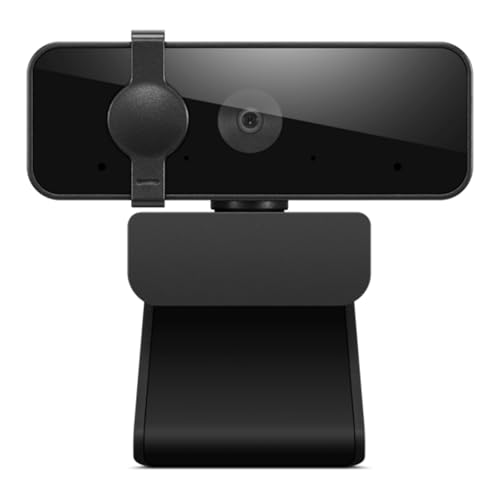
Lenovo Essential Webcam Gen 2
A 1080p webcam with dual microphones, an 85 degree field of view, a USB-A connection, and a built-in manual privacy shutter.
View on AmazonThese come from our ranked list Best Webcam for Laptop, which compares them spec by spec.
FAQ
Do I need to install software for a webcam?
No. The OBSBOT Meet 2 turns on through a single USB-C connection and is ready for use, and the Logitech C270 is a plug-and-play webcam. The OBSBOT Center software offers deeper settings for the OBSBOT Meet 2, and the Logi Options+ app controls settings for the Logitech Brio.
Can I use a webcam microphone for calls?
Yes. The OBSBOT Meet 2, Logitech Brio, Logitech C270, and Lenovo Essential FHD Webcam Gen 2 each have built-in microphones. The Logitech C270 has a noise-reducing microphone, and the Logitech Brio and Lenovo Essential FHD Webcam Gen 2 have dual microphones.
Why is my webcam picture dark?
Move so light falls on your face, then check the light correction on the webcam. The Logitech C270 adjusts to lighting with RightLight 2, and the Logitech Brio adjusts exposure and contrast with RightLight 3. The OBSBOT Meet 2 pairs a 1/2 inch sensor with HDR for brighter images.


