
How to Clip a Webcam on a Laptop
 By Theo LangUpdated
To clip a webcam on a laptop, open the clip on the back of the webcam, hook the front edge over the top of the screen, and close the back foot behind the screen so the clip grips the bezel. Then tilt the lens toward your face and plug in the USB cable.
Open the webcam clip
Turn the webcam over and find the clip or fold-out foot on the back. Open it wide enough to clear the thickness of your laptop screen, with the front hook facing forward and the back foot swung out behind it. If the clip folds flat for storage, unfold it until it holds its shape on its own.
Hook it over the top of the screen
Set the webcam at the top center of the screen so the lens faces you straight on. Slide the front hook over the front edge of the bezel, then swing the back foot down behind the screen and press the clip closed. The webcam should sit snug against the bezel without covering any of the picture. Give it a gentle nudge to confirm the clip grips before you let go.
Adjust the tilt and angle
Tilt the webcam body until the lens points at your face rather than over your head or at the desk. The clip hinge lets the camera pivot up and down, and some models adjust further: the Lenovo Essential FHD Webcam Gen 2 tilts from -20 degrees to 10 degrees. Center the lens over the middle of the screen so your picture stays level.
Connect the cable and check the picture
Plug the webcam cable into a free USB port on the laptop. Open your camera or meeting app and select the webcam as the video source if the app still shows the built-in camera. Check that your face sits in the middle of the frame, then nudge the tilt again if the picture cuts off the top of your head or shows mostly ceiling.
Remove it without scratching the screen
Lift the back foot away from the rear of the screen first, then slide the front hook up and off the bezel. Do not pull the webcam straight forward while the clip is closed, since the hook can drag across the screen surface. Fold the clip flat again before you pack the webcam away.
What you need

OBSBOT Meet 2-4K Webcam for PC
A 4K webcam with a 1/2-inch sensor, AI framing, autofocus, and a single USB-C connection.
View on Amazon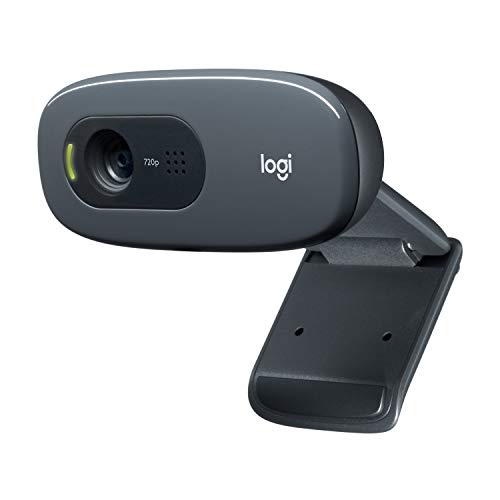
Logitech C270 Webcam Plug-and-Play Wide Screen Video Calling
A 720p webcam with an adjustable universal clip, auto light correction, and a noise-reducing mic.
View on Amazon
Logitech Brio 4K Webcam
A 4K webcam with autofocus, 5x digital zoom, and dual noise-cancelling microphones.
View on Amazon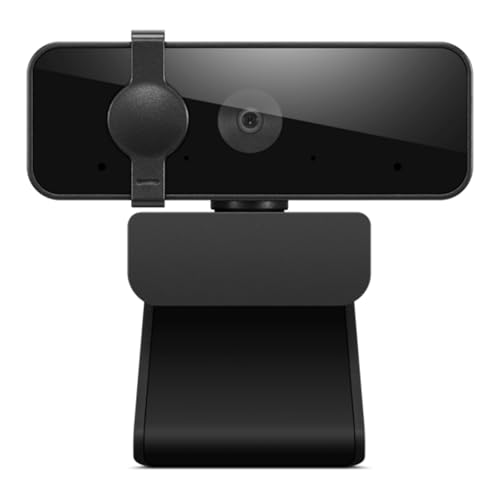
Lenovo Essential Webcam Gen 2
A 1080p webcam with dual microphones, an 85-degree field of view, and a built-in privacy shutter.
View on AmazonThese come from our ranked list Best Webcam for Laptop, which compares them spec by spec.
FAQ
Where is the best place to clip a webcam on a laptop?
Clip it at the top center of the screen bezel. That puts the lens at eye level and centered on your face, so you look toward the camera instead of down at the screen.
Will a webcam clip fit a thin laptop screen?
Check the clip range the maker states for your webcam. The Lenovo Essential FHD Webcam Gen 2 fits monitors from 4 mm to 40 mm thick, so it covers thin laptop lids and thicker monitor bezels.
Can I put the webcam on a shelf instead of clipping it?
Some clips fold flat to act as a stand. The Logitech C270 lets you fold the clip and set the webcam on a shelf, which works when the screen bezel is too thin or curved for the hook.


