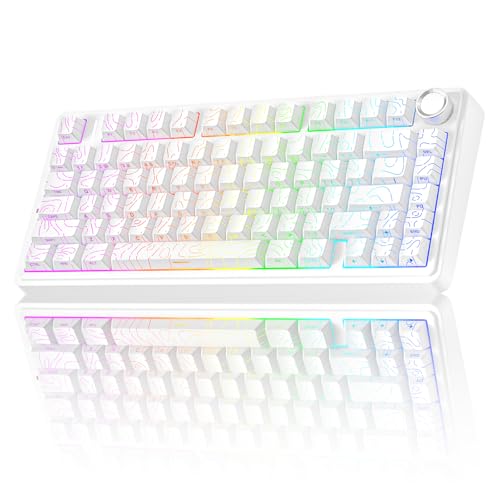
How to Clean a Keyboard with Compressed Air
 By Theo LangUpdated
Shut the keyboard down and unplug it, then blow short bursts of compressed air between the keys to push dust out. Hold the keyboard upside down over a bin so the dust falls out instead of settling back between the keys. Check the maker's manual before you remove any keycaps.
Shut down and unplug the keyboard
Shut the computer down and unplug the keyboard before you clean it, and follow the maker's manual. If the keyboard is wireless, switch it off and unplug the USB-C cable. A keyboard that stays on can register key presses while you clean, and a wired keyboard can draw power while you work.
Blow air between the keys
Hold the can upright and blow short bursts between the keys, moving across the keyboard row by row. Tilt the keyboard so dust falls out instead of settling deeper between the keys. Do not shake the can or turn it upside down, and stop if liquid comes out of the nozzle.
Remove keycaps only if the board allows it
The YUNZII B98 PRO, the SOLAKAKA A99 Pro and the KiiBoom Phantom98 Lite are hot-swappable, so their switches and keycaps come off without soldering. The SOLAKAKA includes a keycap puller for lifting keycaps off. The AULA S99 is a membrane keyboard and does not support hot-swapping, so clean it with the keycaps in place and follow the maker's manual.
Clean the keys and the surface
Wipe the keycaps and the keyboard surface with a dry cloth after blowing the dust out. If keys still stick, check the maker's manual for how to remove and refit keycaps on your model. Do not pour water or cleaner into the keyboard, and let it dry fully before you plug it back in.
What you need

AULA S99 Gaming Keyboard
A 96% membrane keyboard with 99 keys and a number pad, which does not support hot-swapping, so clean it with the keycaps in place.
View on Amazon
YUNZII B98 PRO 96% Wireless Mechanical Keyboard (Blue
A 96% hot-swappable mechanical keyboard with 100 keys, so keycaps and switches come off for cleaning under them.
View on Amazon
SOLAKAKA A99 Pro Mechanical Keyboard
A 96% hot-swappable keyboard with 97 keys and a keycap puller, so keycaps lift off for cleaning under them.
View on Amazon
KiiBoom Phantom98 Lite 96% Wireless Mechanical Gaming Keyboard
A 96% hot-swappable keyboard with 97 keys, so switches change without soldering and keycaps lift off for cleaning.
View on AmazonThese come from our ranked list Best 96 Keyboard, which compares them spec by spec.
FAQ
Can I use compressed air on a wireless keyboard?
Yes. Switch the wireless keyboard off first, then blow short bursts between the keys. All four keyboards connect over Bluetooth, 2.4GHz or USB-C, so unplug the cable before you clean.
Do I need to remove the keycaps first?
No. Blow air between the keys with the keycaps in place first. On hot-swappable boards such as the YUNZII B98 PRO, the SOLAKAKA A99 Pro and the KiiBoom Phantom98 Lite, keycaps lift off for a deeper clean, while the membrane AULA S99 does not support hot-swapping.
What if keys still stick after cleaning?
Check the maker's manual for your model, and look for dust still caught under the key. On a hot-swappable keyboard you can lift the keycap and blow air under it, then refit it. If a key still sticks, contact the maker.