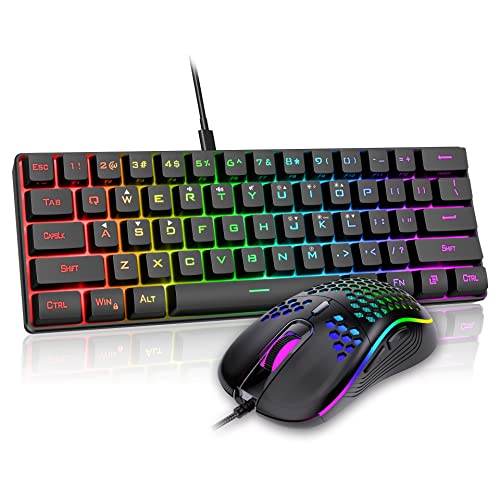
How to Clean a Keyboard and Mouse Pad
 By Theo LangUpdated
Disconnect the keyboard, shake out loose debris, then wipe the keys and the mouse pad with a lightly damp cloth. Let both dry fully before you reconnect. Work gently, keep water out of the keyboard, and follow the manual for your model.
Disconnect the keyboard first
Unplug the keyboard from USB and switch wireless keyboards off before you start. Remove the mouse pad from the desk and shake off loose crumbs over a bin. Keep water away from the keyboard at this stage. A dry cloth, a soft brush and a lightly damp cloth are enough for the steps below. Check the manual for your model first.
Shake out loose debris
Turn the keyboard over and tap the back gently so crumbs fall out from between the keys. Run a soft brush along the rows to lift dust that stays behind. Compressed air can help in short bursts, held upright and kept moving. Work over a bin or towel so debris does not land back on the desk. Do not pry at keys that the maker does not allow you to remove.
Wipe the keys and case
Wipe each key and the case with a microfiber cloth that is lightly damp, not wet. Wring the cloth out well so no water drips into the keyboard. For sticky spots, dampen the cloth again and wipe the same spot rather than soaking it. Cotton swabs reach the gaps between keys. If your model allows keycap removal, lift keycaps gently, clean them separately and let them dry before refitting.
Clean the mouse pad surface
Shake the mouse pad over a bin to drop loose dust and crumbs. Wipe the surface with a lightly damp cloth, working across the whole pad. For a fabric pad, wash it by hand only when the maker allows washing, then press water out with a towel. Lay the pad flat to dry. A hard pad needs wiping only, with no soaking.
Dry everything before reconnecting
Leave the keyboard and pad to dry fully before you reconnect anything. Check that keycaps you removed sit straight and press cleanly. Reconnect the cable or switch the keyboard back on, then type across every row to confirm each key registers. If a key sticks, disconnect again and check the manual. Do not open the keyboard case to chase a fault.
What you need

AULA S99 Gaming Keyboard
A membrane keyboard with tri-mode Bluetooth, 2.4GHz and USB-C connection, so you can switch it off and unplug it before cleaning.
View on Amazon
YUNZII B98 PRO 96% Wireless Mechanical Keyboard (Blue
A hot-swappable mechanical keyboard with pre-lubed switches, so keycaps and switches can be lifted out for cleaning underneath.
View on Amazon
SOLAKAKA A99 Pro Mechanical Keyboard
A hot-swappable mechanical keyboard that comes with a keycap puller and double-shot PBT keycaps for cleaning key by key.
View on Amazon
KiiBoom Phantom98 Lite 96% Wireless Mechanical Gaming Keyboard
A hot-swappable mechanical keyboard with pre-lubed linear switches, so switches can be changed without soldering after cleaning.
View on AmazonThese come from our ranked list Best 96 Keyboard, which compares them spec by spec.
FAQ
Can I wash a mouse pad in water?
Check the manual for your pad first. If the maker allows washing, wash it gently by hand and let it dry fully. If the maker gives no washing steps, wipe it with a lightly damp cloth instead.
How often should I clean them?
Clean when you see crumbs between keys, when keys stick or feel gritty, or when the pad surface looks stained. Those signs tell you more than a fixed schedule.
Can I remove keycaps to clean underneath?
Only when the maker allows it. The YUNZII B98 PRO and SOLAKAKA A99 Pro support swapping switches and keycaps, and the KiiBoom Phantom98 Lite supports hot-swappable switches. The AULA S99 is a membrane keyboard and does not support hot-swapping.
What if a key still sticks after cleaning?
Stop and let everything dry fully. If a key still sticks after drying, check the manual for your model and contact the maker instead of opening the case.