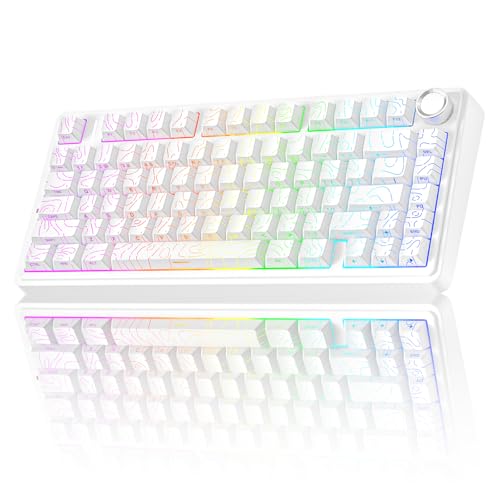
How to Remove Hair From a Keyboard
 By Theo LangUpdated
Turn the keyboard upside down and shake it to drop hair, then use short bursts of compressed air and a brush to clear what stays caught between the keys. For hair wrapped around key stems or caught under keycaps, remove the keycaps, lift the hair out with tweezers, and wipe the surface before putting the caps back. Shut the keyboard down and unplug it before you start.
Shut down and unplug the keyboard
Shut down your computer and unplug the keyboard before you clean it. If the keyboard is wireless, switch it off and remove the cable if one is attached. Working on a keyboard that is still powered can send stray key presses to the computer, and liquid or loose hair near a live connection is a risk you can avoid. Move the keyboard to a clear surface with room to work.
Shake out loose hair and blow out dust
Hold the keyboard upside down over a bin and shake it gently so loose hair falls out. Tap the back of the keyboard lightly with your palm to loosen hair caught between the keys. Then hold the keyboard at an angle and use short bursts of compressed air to push the rest out from between the keys. Work across the rows in turn so you can see what comes out.
Remove keycaps and lift out trapped hair
Hair wrapped around a key stem or caught under a keycap will not come out with shaking or air. If your keyboard allows it, pull the keycaps off with a keycap puller, lifting straight up, and keep the caps in order so they go back in the right place. Lift wrapped hair out with tweezers and brush the exposed surface clean with a soft brush. Check the maker's manual first, and do not pull out switches on a keyboard that is not hot-swappable.
Put the keycaps back and check the keys
Line up each keycap over its switch and press it down until it sits flat and level with the keys around it. Plug the keyboard back in or switch it on, then press the keys you cleaned to check they respond. If a key still sticks or hair is still visible, take that cap off again and repeat the cleaning. A dry cloth wipe over the surface finishes the job.
What you need

AULA S99 Gaming Keyboard
A 96% membrane keyboard with Bluetooth 5.0, 2.4GHz and USB-C connections, RGB backlighting and programmable keys.
View on Amazon
YUNZII B98 PRO 96% Wireless Mechanical Keyboard (Blue
A 96% hot-swappable mechanical keyboard with pre-lubed Milk V2 linear switches, QMK/VIA support and RGB backlighting.
View on Amazon
SOLAKAKA A99 Pro Mechanical Keyboard
A 96% hot-swappable mechanical keyboard with an LCD screen, a metal knob, RGB backlighting and a keycap puller in the box.
View on Amazon
KiiBoom Phantom98 Lite 96% Wireless Mechanical Gaming Keyboard
A 96% hot-swappable mechanical keyboard with 97 keys, VIA support, RGB backlighting and a gasket-mounted structure.
View on AmazonThese come from our ranked list Best 96 Keyboard, which compares them spec by spec.
FAQ
Can I use a vacuum cleaner on my keyboard?
A vacuum with a brush attachment can pick up loose hair from the surface, but keep the suction low and hold the nozzle above the keys so it does not pull a keycap off. For hair caught under the keys, remove the keycaps and lift the hair out by hand.
Should I remove the keycaps to clean out hair?
Yes, if your keyboard allows it. Removing the keycaps gives you access to hair wrapped around the stems and caught in the gaps, which shaking and air cannot reach. Check the maker's manual first and keep the caps in order so they go back in the right place.
How do I stop hair from getting into my keyboard?
Keep the keyboard covered when you are not using it and brush hair away from the desk before you sit down to type. Clean the keyboard often so loose hair does not build up under the keys, and keep pets away from the desk while you work.