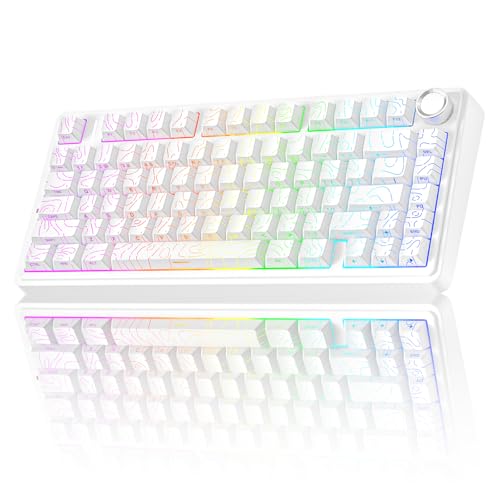
How to Clean Dusty Keyboard Keys
 By Theo LangUpdated
Dust settles on the keycaps and slips between the keys, where it dulls the legends and can make keys feel gritty. Shake the loose dust out, brush between the keys, then wipe the keycaps with a barely damp cloth. Work with the keyboard unplugged so a stray drop of water never reaches the switches.
Unplug and shake the dust out
Shut down your computer and unplug the keyboard, or switch a wireless keyboard off and remove its cable. Turn the keyboard upside down over a bin and shake it gently so loose dust falls out. Tap the back of the case lightly with your palm to free dust caught under the keycaps. A quick shake first keeps the dust from spreading deeper when you brush.
Brush dust from between the keys
Use a soft brush, such as a clean paintbrush or a soft toothbrush, to sweep dust from the gaps between the keys. Brush from the top row toward the bottom row so dust falls out of the keyboard instead of settling deeper. A can of compressed air also works: hold it upright and use short bursts across each row. Work row by row so no gap is missed.
Wipe the dust off the keycaps
Dampen a lint-free cloth with water and wring it out until it is barely damp. Wipe each keycap from top to bottom, turning the cloth to a clean section as it picks up dust. Give the space bar and the wide keys an extra pass, since they have wide flat tops. Keep the cloth damp, never wet, so no water drips into the keyboard.
Lift keycaps to reach dust below
Check your keyboard's manual before pulling any keycap. Some keyboards have keycaps that lift off with a keycap puller, while others hold them fixed. Pull straight up with steady pressure and never force a keycap that does not move. Brush the dust from the exposed plate, then press each keycap back onto its switch until it sits level with the keys around it.
Let it dry before you use it
Leave the keyboard unplugged until every surface you wiped feels dry to the touch. If you lifted keycaps, check that the plate under them is dry as well. Reconnect the cable or switch the keyboard back on, then press each key once to check that it registers. If a key still feels gritty, brush around it again and let it dry before you use it.
What you need

AULA S99 Gaming Keyboard
A 96% membrane keyboard with 99 keys and a number pad, so the dusting steps below cover every key row from the main cluster to the number pad.
View on Amazon
YUNZII B98 PRO 96% Wireless Mechanical Keyboard (Blue
A 96% mechanical keyboard with hot-swappable switches and double-shot PBT keycaps you can swap, so keycaps lift off for dusting under them.
View on Amazon
SOLAKAKA A99 Pro Mechanical Keyboard
A 96% hot-swappable keyboard with 97 keys that comes with a keycap puller, which makes lifting keycaps to dust under them simple.
View on Amazon
KiiBoom Phantom98 Lite 96% Wireless Mechanical Gaming Keyboard
A 96% hot-swappable mechanical keyboard with 97 keys and a gasket mount, with the same full layout the dusting steps cover.
View on AmazonThese come from our ranked list Best 96 Keyboard, which compares them spec by spec.
FAQ
Can I use a vacuum cleaner on dusty keys?
Yes, with a soft brush nozzle and the lowest suction setting. Hold the nozzle just above the keys and move it slowly across each row, then brush any dust the nozzle leaves behind.
Why does dust keep coming back on my keyboard?
Dust in the air settles on any flat surface, and a keyboard sits open on a desk all day. Wipe the keycaps when you see dust on them, and shake the keyboard out before dust works its way under the keys.
Can dust damage a keyboard?
Dust on the keycaps is only a surface problem, but dust under the keys can make them feel gritty or stick. Regular brushing and wiping keep the dust on the surface, where a cloth can reach it.