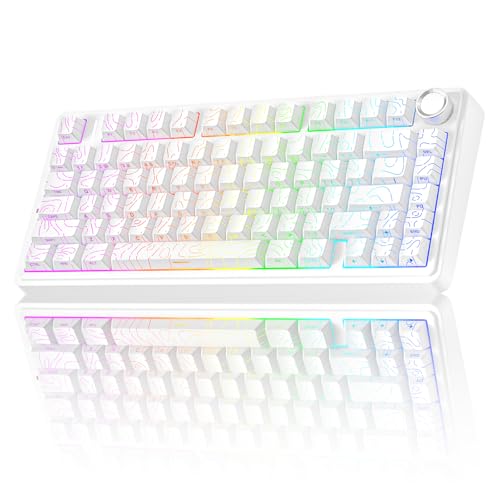
How to Clean a Laptop Keyboard Without Removing Keys
 By Theo LangUpdated
To clean a laptop keyboard without removing keys, shut the laptop down, unplug it, and shake loose crumbs out over a surface. Brush dust from between the keys, blow out what remains with short bursts of compressed air, and wipe the key tops with a barely damp, soft cloth. Let the keyboard dry fully before you switch the laptop on again.
Shut down and unplug the laptop
Shut the laptop down and unplug it from power before you touch the keys, and follow the maker's manual for your model. Turn the laptop upside down over a clean surface and shake it gently so loose crumbs and dust fall out. Turn it back over and tap the base lightly to free anything still sitting between the keys. Work over a surface you can wipe clean after.
Brush dust from between the keys
Sweep a clean, soft brush across the keys in one direction so dust moves out of the gaps instead of deeper in. Hold the laptop tilted so the dust falls away from the keyboard, and brush the edges and corners where dust gathers. Work across the rows from one side to the other, and shake the laptop gently again to drop what the brush freed.
Blow out dust with compressed air
Use short bursts of compressed air to lift dust from between the keys, and keep the can upright while you spray. Move across the keyboard in rows, and pause between bursts so dust can fall out instead of settling back in. Keep the nozzle a short distance from the keys, and stop if you see moisture on the keys.
Wipe the keys with a damp cloth
Dampen a soft, lint-free cloth with a little water and wring it out until it is barely damp. Wipe the tops of the keys and around their edges, and use a dry part of the cloth to take up moisture as you go. Never pour or spray liquid onto the keyboard, and use water only. Let the keys dry before you close the lid or switch the laptop on.
Free a sticky key without lifting it
Press a sticky key several times to work it loose, then wipe around its edges with the barely damp cloth. Dry the area, press the key again, and check that it moves freely and registers. Leave the key on the board; lifting it can damage the clip underneath. If the key still sticks after it dries, check the maker's manual or contact the maker for help.
What you need

AULA S99 Gaming Keyboard
A 96% membrane keyboard with 99 keys, RGB backlight and Bluetooth, 2.4GHz and USB-C connection, cleaned in place with the keys on.
View on Amazon
YUNZII B98 PRO 96% Wireless Mechanical Keyboard (Blue
A 96% mechanical keyboard with pre-lubed Milk switches, double-shot PBT keycaps and RGB backlight, cleaned without pulling the keycaps.
View on Amazon
SOLAKAKA A99 Pro Mechanical Keyboard
A 96% mechanical keyboard with 97 keys, hot-swappable switches, an LCD screen and a metal knob, cleaned without pulling the keycaps.
View on Amazon
KiiBoom Phantom98 Lite 96% Wireless Mechanical Gaming Keyboard
A 96% mechanical keyboard with 97 keys, hot-swappable Mochi switches and RGB backlight, cleaned without pulling the keycaps.
View on AmazonThese come from our ranked list Best 96 Keyboard, which compares them spec by spec.
FAQ
Can I use a vacuum on a laptop keyboard?
A vacuum can pull dust from between the keys, but keep the nozzle off the keycaps and use low suction if your vacuum has it. Brush and compressed air reach the gaps without pulling on the keys. If a key feels loose after vacuuming, press it gently back into place and check that it still registers.
How often should I clean my laptop keyboard?
Clean it when you see dust between the keys or a key starts to stick, and brush it out before dust builds up. A wipe with a damp cloth handles marks on the key tops. If keys stick after cleaning, check the maker's manual or contact the maker.
What if liquid spills on the keyboard?
Shut the laptop down and unplug it right away, then turn it upside down so liquid drains out. Blot the keys with a dry cloth and let the laptop dry fully before you switch it on. If keys stick or act strangely after it dries, contact the maker for help.