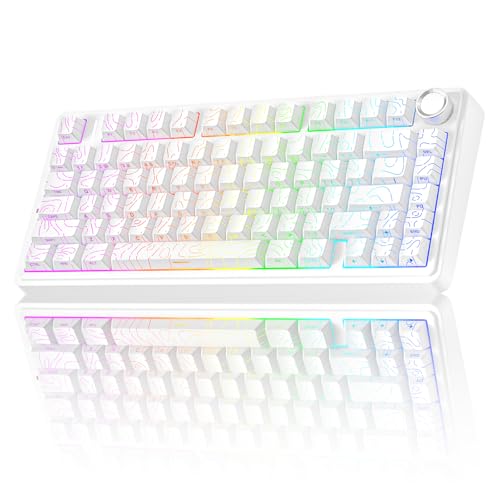
How to Clean a Keyboard Without Removing Keys
 By Theo LangUpdated
To clean a keyboard without removing the keys, unplug it or switch off wireless, turn it upside down and shake out loose crumbs, then blow dust from between the keys with short bursts of compressed air. Brush the gaps with a soft brush, wipe the keycaps with a dry cloth, and let the keyboard dry before you use it again.
Unplug the keyboard and clear the desk
Unplug the cable or switch off wireless before you start, and follow the manual for your keyboard. Move cups, papers and other items off the desk so crumbs have somewhere to fall. Work over a trash can or a towel so the dust and crumbs land in one place.
Shake the crumbs out
Turn the keyboard upside down over the trash can and tap the back gently so loose crumbs and dust fall out. Tilt it from side to side so crumbs stuck near the edges work loose. Do not shake it hard, and do not hit it against the desk, since the keys and the switches sit in place.
Blow dust from between the keys
Hold the can of compressed air upright and use short bursts between the keys, working across the keyboard in rows. Keep the nozzle a short distance from the keys and let the dust fall out instead of blowing it deeper. Pause after each row and shake the keyboard again if more dust comes loose.
Brush the gaps and wipe the keys
Brush between the keys with a soft brush, sweeping dust toward the edge of the keyboard. Wipe the keycaps with a dry, soft cloth, then use a cloth lightly dampened with water for marks that stay. Keep liquid away from the gaps between the keys, and dry the keyboard before you plug it back in.
Check the keys and plug back in
Press each key and check that it moves freely and springs back. If a key still sticks, blow another short burst of air around it and brush the gap again. Do not pry the keys off, and contact the maker if a key keeps sticking after cleaning. Plug the cable back in or switch wireless back on when the keyboard is dry.
What you need

AULA S99 Gaming Keyboard
A 96% membrane keyboard with Bluetooth 5.0, 2.4GHz wireless and USB-C, RGB backlight, a number pad and a dual-mode knob.
View on Amazon
YUNZII B98 PRO 96% Wireless Mechanical Keyboard (Blue
A 96% wireless mechanical keyboard with Bluetooth 5.0, 2.4GHz and USB-C, hot-swappable milk switches, a number pad and RGB backlight.
View on Amazon
SOLAKAKA A99 Pro Mechanical Keyboard
A 96% wireless mechanical keyboard with an LCD screen, a metal knob, hot-swappable star vector switches and RGB backlight.
View on Amazon
KiiBoom Phantom98 Lite 96% Wireless Mechanical Gaming Keyboard
A 96% wireless mechanical keyboard with 2.4GHz and USB-C, hot-swappable mochi switches, VIA support, RGB backlight and an 8000mAh battery.
View on AmazonThese come from our ranked list Best 96 Keyboard, which compares them spec by spec.
FAQ
Can I use compressed air on a keyboard?
Yes. Hold the can upright and use short bursts between the keys, with the keyboard unplugged or switched off. Keep the nozzle away from the keys so liquid from the can does not reach them.
Why do keys stick after cleaning?
Dust or crumbs may still sit under a key. Blow another short burst of air around the key, brush the gap, and press the key a few times. If it keeps sticking, contact the maker.
How often should I clean my keyboard?
Clean it when keys stick, feel gritty, or dust shows between the keys. A short pass with compressed air when dust builds up keeps the keys moving freely.