How to Choose a Gaming Keyboard
 By Theo LangUpdated
To choose a gaming keyboard, start with the switch type, the layout and the connection, then check the backlight, the keycaps and the extra keys. A mechanical switch gives a distinct press, while a mechanical-feeling board gives a similar press without individual switches. Match the layout to your desk and your games, and check that the keyboard lists your PC or console before you buy.
Pick the switch type first
A mechanical keyboard has one switch under each key, and the switch type sets how the key feels when you press it. Linear switches press straight down with no bump, which suits fast repeated presses in games. Other switches add a bump or a click. A mechanical-feeling board copies that press without individual switches. If you want to change the feel later, look for a hot-swappable board, which lets you pull switches out and press new ones in without soldering.
Choose a layout that fits your desk
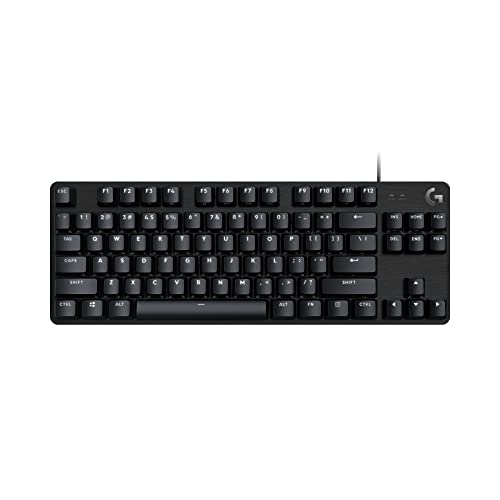
A full-size board keeps the number pad and the full key set, which helps if you type numbers or use the pad for game commands. A compact board drops the number pad and saves desk space for the mouse, while keeping the arrow keys and the keys games use most. Check the layout before you buy, since a compact board moves or drops keys you may reach for without looking. Sit the board where your hands rest naturally and leave room to move the mouse.
Decide between wired and wireless
A wired board connects by cable and is ready as soon as you plug it in, with no battery to charge. A wireless board connects over Bluetooth or 2.4 GHz and frees the desk from a cable, but it runs on a rechargeable battery that needs charging. Some boards offer all three: Bluetooth, 2.4 GHz and a wired USB connection, so you can switch between devices or plug in while the battery charges. Check that the board lists the connection your PC or console accepts.
Check backlight, keycaps and extra keys
Backlighting lights the keys so you can see them in a dark room, and many boards let you change the brightness, the speed or the color of the light. Keycaps shape how the keys feel under your fingers, and side-printed legends let the light shine through the letters. A control knob adjusts volume or light brightness without opening a menu. Multimedia keys and macro keys put volume, media and custom commands within reach, so check which extras the board includes and whether you will use them.
Check compatibility and warranty
A keyboard that works with one system may not work with another, so check that the board lists your PC, your Mac or your console before you buy. Some boards work with tablets and phones as well, and some need no driver at all. Read the warranty term before you buy so you know how long the maker covers the board. Keep the manual nearby after setup, since it shows the key combinations for lighting, macros and the Windows key lock.
What you need

AULA F75 Pro Wireless Mechanical Keyboard
A 75% wireless board with LEOBOG reaper switches, a control knob, RGB backlight, a hot-swappable base and Bluetooth 5.0, 2.4 GHz and USB wired connections.
View on Amazon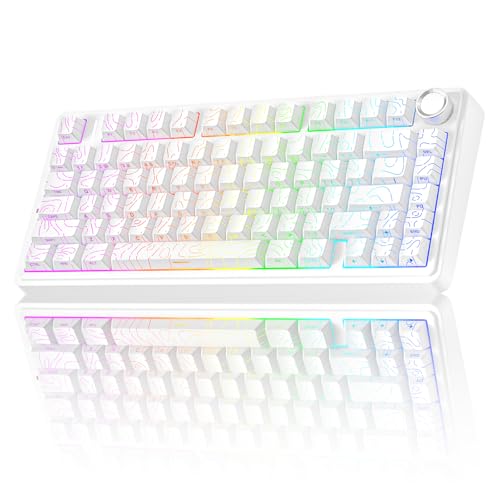
AULA F75 Pro Wireless Mechanical Keyboard
A 75% wireless board with LEOBOG star vector switches, a control knob, RGB backlight, a hot-swappable base and side-printed PBT keycaps.
View on Amazon
Redragon K521 Upgrade Rainbow LED Gaming Keyboard
A wired 104-key board with rainbow backlight, 19-key anti-ghosting and 12 multimedia keys, with plug-and-play use and no driver needed.
View on Amazon
Redragon Mechanical Gaming Keyboard Wired
A wired mechanical board with hot-swappable red switches, 11 backlit modes, full-key anti-ghosting and macro editing.
View on AmazonThese come from our ranked list Best Gaming Keyboard, which compares them spec by spec.
FAQ
Do I need a mechanical keyboard for gaming?
No. Mechanical boards give a distinct press, and hot-swappable boards let you change switches without soldering. Mechanical-feeling boards give a similar press without individual switches. Either works for games, so pick the feel you like.
Is a wireless gaming keyboard a good choice?
Yes, if it lists the connection your setup uses. Bluetooth and 2.4 GHz cut the cable, and tri-mode boards also connect by USB cable. Keep the cable nearby so you can keep playing while the board charges.
What does hot-swappable mean on a keyboard?
It means you can pull a switch out of the board and press another one in without soldering. That lets you change the feel of single keys or replace a switch that stops working.
How many keys do I need on a gaming keyboard?
A full-size board keeps the number pad, which helps if you type numbers often. A compact board drops the number pad and saves desk space while keeping the arrow keys. Pick the layout that fits your desk and the keys you reach for.