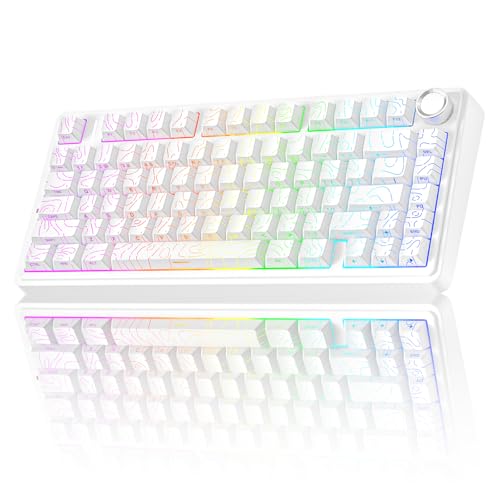
How to Change Switches on a Keyboard
 By Theo LangUpdated
You can change switches only on a hot-swappable keyboard, where switches pull out without soldering. Unplug the keyboard, remove the keycaps, pull each switch straight out, push the new switch in until its pins seat, then press every key to check it registers. A membrane keyboard such as the AULA S99 does not support hot-swapping, so its switches are not made to be swapped this way.
Check if your keyboard is hot-swappable
Look for hot-swappable in the keyboard's description or manual before you start. The YUNZII B98 PRO, the SOLAKAKA A99 Pro, and the KiiBoom Phantom98 Lite are hot-swappable, so their switches pull out without soldering. The AULA S99 is a membrane keyboard and does not support hot-swapping, so do not try to pull its switches out. If you are unsure whether your keyboard is hot-swappable, check with the maker before you pull a switch.
Unplug the keyboard first
Shut down the keyboard connection before you work on it. Unplug the USB cable, or switch a wireless keyboard off and unplug its receiver if it has one. Put the keyboard on a flat surface with room for the keycaps and switches you remove. Keep the removed parts in order so each keycap goes back on the same key.
Remove the keycaps
Use a keycap puller to lift each keycap off the switch below it. Pull straight up and keep the keycaps in rows so you can put them back in the same places. The SOLAKAKA A99 Pro comes with a keycap puller, so use the one in the box if you have that keyboard. Work one section at a time if you are changing only some switches.
Pull out the old switches
Use a switch puller to grip the top and bottom of a switch and pull it straight up out of the plate. Do not twist the switch or pull at an angle, since that can bend the pins or damage the socket. The YUNZII B98 PRO base works with 3-pin and 5-pin switches, and the SOLAKAKA A99 Pro also supports 3-pin and 5-pin switches, so match the pins on your new switches to the sockets. Set each old switch aside.
Push in the new switches and check them
Line up the pins on a new switch with the socket and push it straight down until it sits flat in the plate. Put the keycaps back on the same keys, then plug the keyboard in or switch it back on. Press every key and check that each one registers and that no key sticks or stays down. If a key does not register, pull that switch out and check that its pins are straight before you push it in again.
What you need

AULA S99 Gaming Keyboard
A membrane keyboard that does not support hot-swapping, so its switches are not made to be pulled out and changed.
View on Amazon
YUNZII B98 PRO 96% Wireless Mechanical Keyboard (Blue
A hot-swappable 96% keyboard with Milk V2 linear switches, a base that works with 3-pin and 5-pin switches, and no soldering.
View on Amazon
SOLAKAKA A99 Pro Mechanical Keyboard
A full hot-swappable 96% keyboard with LEOBOG star vector switches, support for 3-pin and 5-pin switches, and a keycap puller.
View on Amazon
KiiBoom Phantom98 Lite 96% Wireless Mechanical Gaming Keyboard
A hot-swappable 96% keyboard with Mochi switches, a gasket mount, and VIA support for remapping keys and lighting.
View on AmazonThese come from our ranked list Best 96 Keyboard, which compares them spec by spec.
FAQ
How do I know if my keyboard is hot-swappable?
Check the keyboard's description or manual for the words hot-swappable. The YUNZII B98 PRO, SOLAKAKA A99 Pro, and KiiBoom Phantom98 Lite are hot-swappable, while the AULA S99 is a membrane keyboard and does not support hot-swapping.
Do I need to solder new switches in place?
No, not on a hot-swappable keyboard. The YUNZII B98 PRO, SOLAKAKA A99 Pro, and KiiBoom Phantom98 Lite let you swap switches without soldering, and the SOLAKAKA A99 Pro comes with a keycap puller for the keycaps.
What if a new switch does not register?
Pull the switch out and check that its pins are straight, then push it back in until it sits flat. If the key still does not register, try a different switch in that socket to see if the switch or the socket is the problem.